Fix- Error 0x80070091: The Directory Is Not Empty

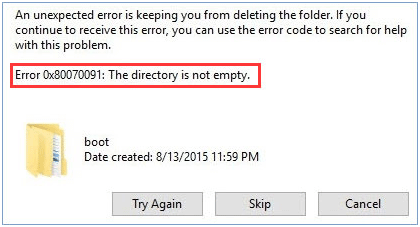
The Error 0x80070091: The directory is not empty usually occurs in Windows when you try to delete a folder or move a directory, and Windows fails because it thinks the folder still contains files—even if it looks empty. This can happen due to:
-
Hidden or system files
-
File/folder permissions issues
-
Corrupted folders or disk errors
-
Interference from running programs or services
Here’s a step-by-step guide to fix it safely:
Method 1: Restart and Try Again
Sometimes the simplest solution works:
-
Close all programs that might be using the folder.
-
Restart your PC.
-
Try deleting or moving the folder again.
Method 2: Delete via Command Prompt
Using Command Prompt often bypasses the GUI errors.
-
Press Windows + S, type
cmd, right-click Command Prompt, and select Run as administrator. -
Type the following command and press Enter:
-
Replace
C:\Path\To\Your\Folderwith the exact folder path. -
/sremoves all files and subfolders. -
/qruns quietly without asking for confirmation.
-
-
Check if the folder is deleted.
Method 3: Use Safe Mode
Sometimes running Windows in Safe Mode helps, as fewer processes are running.
-
Press Windows + I → Update & Security → Recovery → Advanced Startup → Restart now.
-
After restart, choose Troubleshoot → Advanced Options → Startup Settings → Restart.
-
Press F4 to boot into Safe Mode.
-
Try deleting the folder again.
Method 4: Check Disk for Errors
Corrupted files or bad sectors can cause this error.
-
Open Command Prompt as administrator.
-
Type:
-
Replace
C:with the drive letter containing the folder. -
/ffixes errors on the disk. -
/rlocates bad sectors and recovers readable information.
-
-
Press Y to schedule it for next restart if prompted.
-
Restart your PC and let Windows scan and fix errors.
Method 5: Use Windows PowerShell
PowerShell can also delete stubborn folders:
-
Press Windows + X → Windows Terminal (Admin).
-
Run the command:
-
Replace the path with your folder location
Method 6: Take Ownership
If it’s a permissions issue, take ownership of the folder:
-
Right-click the folder → Properties → Security → Advanced.
-
Click Change next to Owner.
-
Enter your username → Check Names → OK → Apply.
-
Ensure your account has Full Control, then try deleting again.
Extra Tips
-
Ensure no programs (like OneDrive, antivirus, or backup tools) are using the folder.
-
Rename the folder before deleting — sometimes Windows allows deletion after a rename.
-
If deleting via GUI, hold Shift + Delete to permanently delete without Recycle Bin.

Thalla Lokesh
Thalla Lokesh is a Digital Marketing Strategist and SEO Specialist with over 12 years of experience in helping businesses grow their online presence. Since beginning his career in 2013, he has successfully worked across industries including healthcare, education, technology, and e-commerce. He specializes in search engine optimization (SEO), content marketing, keyword strategy, and link building, with a strong focus on delivering measurable results. Lokesh has helped brands achieve top rankings on Google through data-driven strategies, high-quality content, and ethical SEO practices aligned with search engine guidelines. As the founder of Honey Web Solutions , a Tirupati-based digital marketing company, he actively works with clients to improve organic traffic, lead generation, and online visibility. He also contributes expert insights on digital marketing trends, AI SEO, and content strategies through blogs and industry platforms.