Classroom Events: How Google Classroom Calendars Work

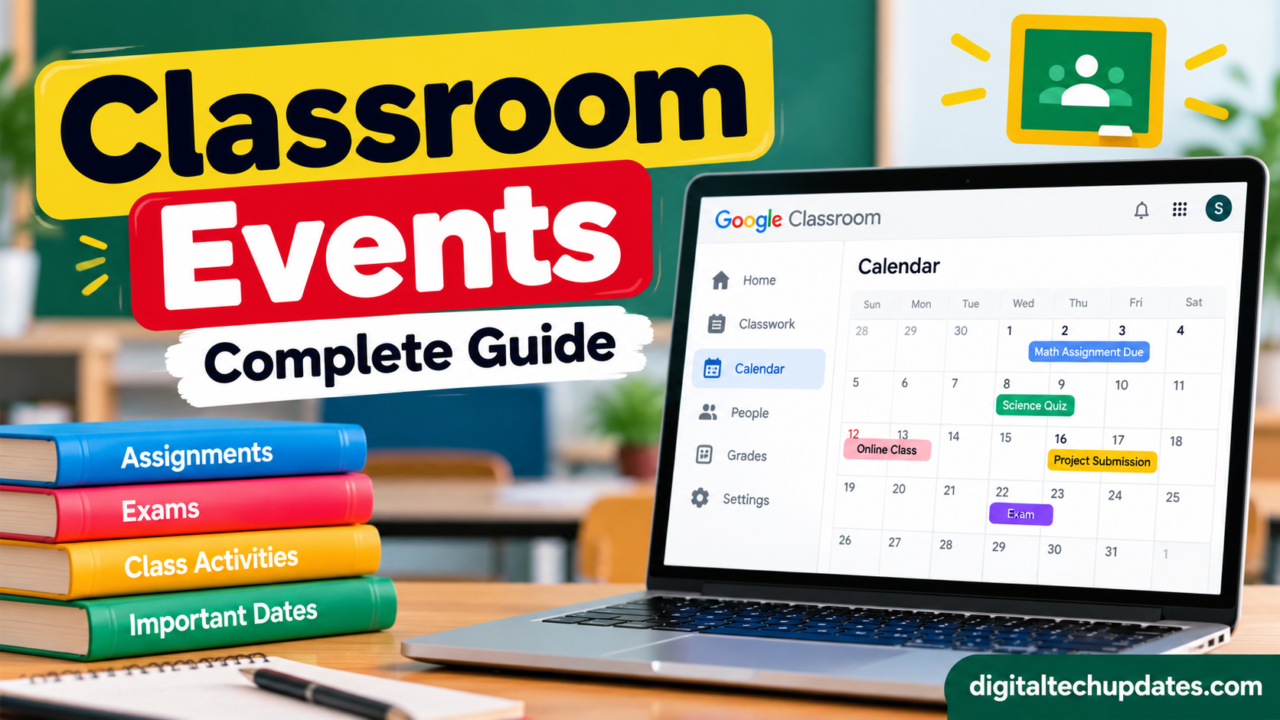
Searching for classroom events and wondering where to find them? If you use Google Classroom for schoolwork, assignments, or online learning, the term may refer to class-related events and important dates displayed through Google Calendar.
Google Classroom helps teachers organize assignments, share learning materials, and communicate with students. Its calendar features help students keep track of deadlines and other class-related activities without missing important dates.
In this guide, you will learn what classroom events mean, how to find them, how Google Classroom and Google Calendar work together, and what to check if an event is missing.
What Are Classroom Events?
Classroom events are scheduled activities or important dates connected to a class. Depending on the context, the term can refer to exams, study sessions, online classes, field trips, guest lectures, and other school activities.
In Google Classroom, students can use calendar features to keep track of classwork deadlines and relevant events. Assignments with due dates can appear in the associated calendar, while Google Calendar offers additional ways to view and organize scheduled activities.
It is important to understand that classroom events is not necessarily the name of a separate Google application. Before installing an app or browser extension, check whether the feature you need is already available through your school’s Google Workspace account.
Official website: https://classroom.google.com/
How Do Classroom Events Work in Google Classroom?
Google Classroom and Google Calendar work together to help students and teachers manage class schedules.
The Classroom calendar provides a view of dated classwork, while Google Calendar offers a broader calendar experience for viewing class events and organizing schedules.
For example, if a teacher assigns a mathematics worksheet with a due date, the deadline may appear on the relevant calendar. A scheduled study session or another class event may also be visible in Google Calendar, depending on how it was created and shared.
These features help students understand what is coming up and plan their work accordingly.
How to Find Classroom Events
If you want to find your classroom events, follow these steps.
Step 1: Open Google Classroom
Visit https://classroom.google.com/ and sign in using the Google account associated with your school or class.
Step 2: Select Your Class
Open the class whose assignments or schedule you want to check. Make sure you have selected the correct class if you are enrolled in multiple courses.
Step 3: Open the Calendar
Look for the calendar option in Google Classroom or open Google Calendar using your account.
The exact interface may vary depending on your device, account settings, and the version of the service you are using.
Step 4: Review Important Dates
Check the calendar for upcoming assignment deadlines and other scheduled activities. Select a relevant item to view additional details when available.
Step 5: Plan Your Work
Use the dates to organize your study schedule, prepare for examinations, and complete assignments before their deadlines.
Note: Your school administrator may restrict access to some Google services. If you cannot open the calendar, contact your teacher or school administrator.
Google Classroom Calendar vs. Google Calendar
Although the two services are connected, they do not have exactly the same purpose.
| Feature | Classroom Calendar | Google Calendar |
|---|---|---|
| Main purpose | View classwork deadlines | Organize schedules and events |
| Assignment due dates | Displays relevant dated classwork | Can display relevant classwork dates |
| Personal reminders | Limited calendar functionality | Supports personal reminders and events |
| Scheduled activities | Shows relevant class-related dates | Can display and organize additional events |
| Adding events | Primarily a view of classwork dates | Supports creating events, subject to account permissions |
The availability of features can depend on your school’s account configuration.
For the latest instructions, consult the official Google Classroom Help Center: https://support.google.com/edu/classroom/
How Teachers Can Manage Classroom Events
Teachers can use Google Classroom and Google Calendar to help students stay informed about their academic schedules.
Add assignment deadlines
Teachers can create assignments in Google Classroom and set due dates. These dates help students track when their work must be submitted.
Organize class schedules
Google Calendar can be used to organize suitable scheduled activities, such as study sessions, meetings, and other class-related events.
Teachers can communicate event details through the appropriate school tools so students know when and where an activity will take place.
Help students prepare in advance
A clear schedule makes it easier for students to plan revision, complete assignments, and prepare for upcoming examinations.
Teachers should confirm that events are shared with the intended students and that account permissions allow them to view the information.
Why Can’t I See Classroom Events?
If you cannot find an event or assignment deadline, several explanations are possible.
You are using the wrong account. Check whether you signed in with the Google account connected to your class.
You selected the wrong class. If you have multiple classes, confirm that you are checking the correct one.
The event has not been shared. Ask your teacher whether the activity has been created and shared with your account.
The calendar is unavailable. Your school administrator may have disabled access to Google Calendar or restricted certain features.
The event details have changed. Check the latest information shared by your teacher instead of relying on an old screenshot or message.
If the problem continues, ask your teacher or school administrator for assistance.
Are Classroom Events Websites Official Google Services?
Not every website that uses the words classroom, events, or Google Classroom is operated by Google.
Search results can include educational resources, independent websites, classroom activity guides, and other services with similar wording. A familiar-sounding name does not establish an official connection.
Before signing in or downloading anything, take these precautions:
- Check the website’s domain carefully.
- Start from the official Google Classroom website when you need to access your class.
- Avoid entering your school password on unfamiliar websites.
- Do not install browser extensions just because an unofficial page recommends them.
- Ask your teacher or school administrator if you are unsure whether a website is approved.
Students should not assume that every result appearing for the keyword classroom events is an official classroom feature.
Benefits of Using Classroom Calendars
Keeping track of classroom dates can make schoolwork easier to manage.
Better organization: Students can see important dates and plan their work in advance.
Fewer missed deadlines: Calendar reminders and regular checks can help students remember upcoming assignments.
Improved study planning: Students can schedule revision around examinations and other commitments.
Clearer communication: Shared calendars can help students understand when activities are scheduled.
Better time management: Checking a calendar regularly can help students divide larger tasks into manageable steps.
These benefits depend on teachers sharing accurate information and students checking their calendars consistently.
Frequently Asked Questions
1. What does classroom events mean?
Classroom events can refer to scheduled school activities, class-related calendar entries, or events connected to classroom learning. The precise meaning depends on the website or service using the term.
2. How do I find classroom events in Google Classroom?
Sign in to Google Classroom with your school account, select your class, and check the available calendar options. You can also open Google Calendar to view relevant classwork dates and shared events.
3. Is Classroom Events a separate Google app?
The phrase itself does not necessarily identify a separate Google application. Google Classroom and Google Calendar provide the official tools for managing classwork dates and calendar events.
4. Can students add events to Google Classroom?
Students can use Google Calendar to create personal events or reminders when their account settings allow it. Personal events do not automatically become shared classroom events.
5. Why are my classroom events not showing?
Possible reasons include using the wrong account, checking the wrong class, an event not being shared, or restrictions on Google Calendar access. Confirm the details with your teacher.
6. Are all classroom events websites safe?
No website should be considered safe or official based on its name alone. Check the domain, review the site’s purpose, and use official school-approved services before entering account information.
7. Can classroom events include exams and study sessions?
Yes. In the general educational sense, classroom events can include exams, study sessions, guest lectures, field trips, and other scheduled activities. Their availability in a digital calendar depends on how the activities are created and shared.
Conclusion
Classroom events can refer to a range of school activities, but when the term relates to Google Classroom, calendar features are an important place to start.
Google Classroom helps students manage classwork, while Google Calendar provides additional tools for viewing schedules and organizing events. Understanding the difference can help you find deadlines, plan your studies, and avoid confusion when searching online.
For accurate information, begin with the official Google Classroom website and support resources. If an event is missing or you cannot access your calendar, check with your teacher or school administrator.

Thalla Lokesh
Thalla Lokesh is a Digital Marketing Strategist and SEO Specialist with over 12 years of experience in helping businesses grow their online presence. Since beginning his career in 2013, he has successfully worked across industries including healthcare, education, technology, and e-commerce. He specializes in search engine optimization (SEO), content marketing, keyword strategy, and link building, with a strong focus on delivering measurable results. Lokesh has helped brands achieve top rankings on Google through data-driven strategies, high-quality content, and ethical SEO practices aligned with search engine guidelines. As the founder of Honey Web Solutions , a Tirupati-based digital marketing company, he actively works with clients to improve organic traffic, lead generation, and online visibility. He also contributes expert insights on digital marketing trends, AI SEO, and content strategies through blogs and industry platforms.