Can You Rebuild Your Video Archive After a Platform Failure? Run This Recovery Drill

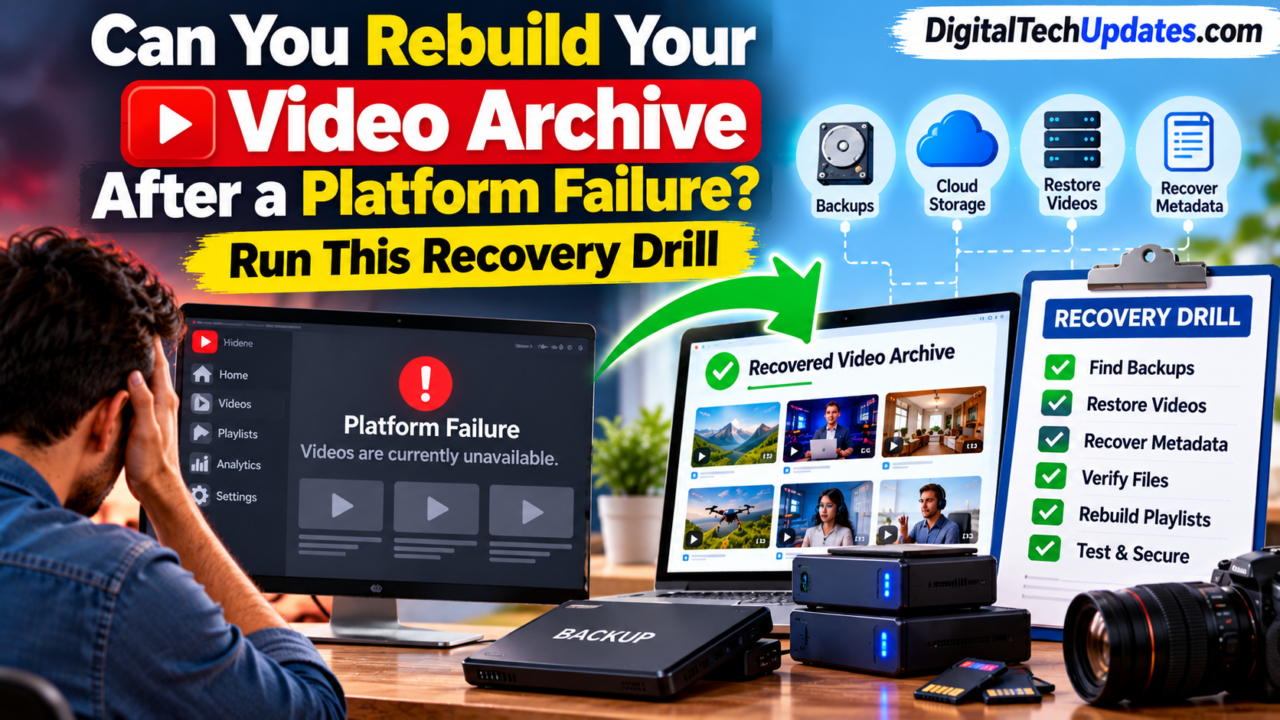
Imagine opening your video hosting platform one morning and discovering that your entire video library is unavailable. Years of tutorials, product demonstrations, marketing videos, training sessions, and customer resources have suddenly disappeared from view.
Your first instinct might be to contact customer support and wait for the platform to fix the problem. But what happens if the outage lasts for days, your account remains inaccessible, or the original files have been permanently deleted?
For businesses and content creators, a video archive is more than a collection of files. It represents hours of production work, valuable knowledge, audience relationships, and potentially years of digital assets.
The real question is not simply whether a video platform can fail. It is whether you can continue operating when it does.
A reliable video archive recovery plan allows you to restore important content without depending entirely on a single platform. The best way to know whether your plan works is to test it before a real incident occurs.
In this guide, you will learn how to rebuild a video archive after a platform failure, protect your original files, restore important metadata, and run a practical recovery drill to identify weaknesses in your backup strategy.
Why Video Archives Are More Vulnerable Than You Think
Many businesses upload their videos directly to third-party platforms and assume that the content will remain accessible indefinitely. Although established platforms may provide reliable hosting and recovery services, relying on one provider creates a potential single point of failure.
A platform disruption can affect access to your videos even when the original files still exist elsewhere. Other incidents can cause more serious damage, particularly when no independent backups are available.
Here are six common situations that can put your video archive at risk.
1. Platform outages
A hosting provider may experience a technical outage, server problem, or service disruption. Videos, playlists, and embedded players may become temporarily unavailable.
In this situation, your original files might remain intact. The immediate priority is to confirm the scope of the outage and determine whether an alternative copy is available.
2. Account suspension or loss of access
A compromised account, access restriction, ownership dispute, or authentication problem can prevent you from managing your content.
Having the original video files and metadata stored independently makes it easier to prepare for a possible migration while resolving the account issue through official support channels.
3. Accidental deletion
An administrator might delete a video, remove a folder, or change permissions without realizing the consequences.
Some services provide recovery windows or version history, but availability depends on the provider and its policies. An independent backup gives you another recovery option.
4. Cyberattacks and ransomware
Attackers may compromise storage systems, encrypt files, or attempt to delete backups. If your backup copies are accessible through the same compromised credentials, they may also be affected.
Protected, isolated, or immutable backups can reduce this risk.
5. Hardware failure
Hard drives, network storage devices, and other hardware can fail. If your only copy of a video archive resides on one device, a hardware problem can result in permanent data loss.
6. Platform changes or shutdowns
A provider may discontinue a service, change its export capabilities, or modify how content is stored and accessed.
Maintaining copies of your original files and a documented inventory gives you more flexibility if you need to move your archive elsewhere.
The lesson is straightforward: your video archive should remain recoverable even if your primary hosting platform becomes unavailable.
Step 1: Find Out Whether Your Videos Are Actually Lost
Before beginning recovery, determine what has failed.
A missing video does not necessarily mean that the original file has been destroyed. The issue could involve account permissions, a temporary service outage, a broken embed, or a problem with the platform’s content management system.
Start with these checks.
Check the platform’s official status page. Look for service incidents, maintenance announcements, or known upload and playback problems.
Verify your account access. If you can still sign in, check whether videos are missing, hidden, restricted, or inaccessible because of permission changes.
Inspect your original storage. Look for exported videos, editing project folders, production computers, network storage, and authorized cloud backups.
Review recent activity. Check available audit logs, deletion records, account alerts, and backup reports to understand when the problem began.
Contact official support when necessary. If the issue involves an account restriction, suspected compromise, or provider-side data loss, follow the provider’s recovery process.
If you suspect ransomware or unauthorized access, prioritize containment and security. Avoid connecting potentially compromised backup drives to affected systems until the situation has been assessed.
Once you understand the problem, document the scope of the incident.
Record the affected videos, available copies, missing assets, storage locations, and any access restrictions. This inventory will help you decide what to restore first.
Step 2: Locate Every Available Copy of Your Video Archive
A successful recovery often depends on finding copies that were created before the failure.
Search systematically rather than relying on memory.
Original production files
Start with the systems used to record, edit, and export the videos.
These may include:
- Camera footage and original recordings.
- Final exported MP4 or MOV files.
- Video editing project files.
- Audio tracks, graphics, and other production assets.
- Caption files and thumbnail images.
Remember that an editing project may reference media stored elsewhere. Finding the project file alone does not guarantee that the complete video can be reconstructed.
Cloud storage and backup systems
Check approved cloud storage accounts, external drives, backup servers, and network-attached storage.
Look for the most recent complete copies and verify whether they contain original-quality files or only compressed previews.
Where possible, preserve an untouched copy of the backup before beginning restoration.
Official platform export tools
If your account is accessible, investigate the platform’s official export or download options.
Depending on the service, an export may include videos, captions, descriptions, playlists, or account information. However, some exports omit original source files, certain metadata, or content that is no longer accessible.
Review the exported files before assuming that the process has captured your entire archive.
Collaborators and agencies
Your video editor, marketing agency, production company, or internal content team may retain authorized copies of published content.
Ask them to identify the available files and document where each copy came from. Use secure transfer methods and confirm that the files can be opened.
Important: Never assume that a collection of downloaded videos is a complete archive. Original files, subtitles, metadata, thumbnails, and editing assets may all be necessary for a full recovery.
Step 3: Prioritize the Videos That Matter Most
Restoring an archive containing hundreds or thousands of videos can take time. Trying to recover everything simultaneously may delay the return of essential content.
Instead, divide your videos into priority groups.
| Priority | Content type | Recovery action |
|---|---|---|
| Critical | Essential training, support, or operational videos | Restore and verify first |
| High | Popular tutorials, product demonstrations, and important campaigns | Restore next |
| Medium | Evergreen educational content and older useful videos | Restore in planned batches |
| Low | Duplicates, outdated promotions, and replaceable clips | Review before restoring |
Your priorities should reflect your actual business requirements.
For example, a software company might need its customer onboarding videos restored quickly. An online educator may prioritize lessons required for an ongoing course. A marketing agency may focus on client assets subject to contractual delivery requirements.
Consider the value of each video, whether it can be recreated, how frequently it is used, and whether another copy exists.
This approach helps you restore critical operations first while maintaining a plan for the rest of the archive.
Step 4: Rebuild the Archive With Its Metadata Intact
Restoring the video files is only half the job.
A properly managed archive also contains information that makes those files searchable, understandable, and reusable.
Important metadata may include:
- Original video titles and descriptions.
- Publication dates and categories.
- Playlist and collection membership.
- Captions and subtitle files.
- Thumbnail images and preview assets.
- Original URLs and platform identifiers.
- Copyright information and usage permissions.
- Relevant analytics and performance records.
Without this information, a restored archive can become a collection of poorly labeled files that takes hours to navigate.
Create a consistent folder structure
Use a naming convention that makes videos easy to identify.
For example:
Video-Archive/2026/Tutorials/Video-Title/
Within each folder, you might store the final video, captions, thumbnail, and a metadata file.
A spreadsheet can also record the original title, filename, publication date, source platform, backup location, and recovery status.
Preserve original filenames where possible
Avoid renaming every file without recording its original identity. Consistent filenames and a mapping between original and restored assets can simplify migration and help reconnect videos to existing webpages.
Keep metadata exports
When available, retain platform exports and other metadata records alongside the corresponding media files.
If you rebuild a public video library, test a small group first. Confirm that the files play, the descriptions are correct, captions are present, and any replacement links work before restoring the remaining archive.
Step 5: Verify Every Restored Video
A successful file copy does not guarantee that a video is usable.
Files may be incomplete, corrupted, or incompatible with the destination platform. Captions may be missing, audio may be out of sync, or the restored file may have a different resolution from the original.
Use a verification process for every recovery batch.
Check file integrity
Compare file sizes and, where available, cryptographic checksums against trusted originals or backup records.
A matching checksum can help confirm that a file has not changed, provided you are comparing against a trustworthy reference.
Test video playback
Open each restored file or use automated media checks to confirm that it can be decoded.
For large collections, automate basic validation and manually inspect a representative sample. Check the beginning, middle, and end of important videos.
Confirm technical compatibility
Verify that the destination platform supports the video’s container format, codec, resolution, and file size.
A video may need to be converted before it can be uploaded to a new service. Keep the original file unchanged and store any converted version separately.
Verify captions and audio
Check that captions are present, readable, and synchronized. Confirm that audio tracks and other required language versions are available.
Check access and permissions
Make sure private or restricted content has not accidentally become public during migration. Review ownership, sharing settings, and any contractual restrictions.
Record the outcome in a recovery log. Each video should be marked as verified, requiring further investigation, or awaiting restoration.
Step 6: Run the 60-Minute Video Archive Recovery Drill
The most important part of recovery planning is testing whether your process works in practice.
A backup system may appear healthy while containing missing files, expired credentials, incomplete exports, or data that cannot be restored.
A recovery drill helps identify these problems without putting your production archive at risk.
For this exercise, use a small, noncritical collection and a separate recovery folder. Do not delete production files or deliberately damage real accounts.
Minutes 0–10: Select a test archive
Choose approximately 10–20 representative videos, if your archive size allows.
Include different formats and a few supporting assets, such as captions, thumbnails, and metadata records.
Document the original file locations and the backup source.
Minutes 10–20: Simulate a platform failure
Assume that the primary video platform is unavailable.
Ask the responsible team member to locate the backup copies without relying on the primary platform.
Record any difficulties with credentials, access permissions, storage locations, or documentation.
Minutes 20–35: Restore the selected files
Copy the test collection from the backup into a separate recovery environment.
Recreate the necessary folder structure and restore the associated metadata.
Measure how long the process takes and document any manual steps.
Minutes 35–50: Verify the recovered archive
Open the restored videos, inspect their playback, check file integrity where possible, and verify that captions and thumbnails are present.
Compare the restored collection against the original inventory.
Record missing or damaged files rather than quietly excluding them from the results.
Minutes 50–60: Document the results
Calculate the number of files successfully restored and verified.
Identify the issues that slowed recovery, assign responsibility for fixing them, and schedule a follow-up test.
The 60-minute duration is a suggested exercise, not a guarantee that every archive can be restored within an hour. The purpose is to evaluate the process and establish realistic recovery expectations.
Video archive recovery drill checklist
-
Identify the critical video collection.
-
Confirm access to an independent backup.
-
Restore files to a separate location.
-
Reconstruct folders and essential metadata.
-
Verify file integrity and playback.
-
Check captions, thumbnails, and permissions.
-
Record recovery time and missing files.
-
Assign corrective actions and a retest date.
A recovery drill is successful when it demonstrates what can be restored, how long restoration takes, and what must be improved—not merely when files have been copied.
Step 7: Protect Your Archive With the 3-2-1 Backup Rule
After testing your current recovery process, strengthen the backup strategy.
One widely used approach is the 3-2-1 backup rule:
- Keep at least three copies of important data, including the original.
- Store the copies across two different storage media or systems.
- Keep at least one copy off-site.
For a video archive, this could mean maintaining working files on primary storage, a separate backup on another storage system, and an additional copy in a different location.
The exact arrangement depends on your archive size, budget, recovery requirements, and security risks.
Keep backups independent
If every copy is accessible through the same account or system, one compromised account or destructive operation may affect all of them.
Use separate credentials and access controls where practical. Consider immutable backups, which prevent modification or deletion for a defined period, or offline copies that are disconnected when not in use.
Automate backup jobs
Scheduled backups reduce the chance of new videos being overlooked.
However, automation should be monitored. Check backup logs, review failed jobs, and periodically verify that the stored files are complete.
Back up metadata, too
Video files alone may not be enough to rebuild a usable archive.
Include relevant descriptions, captions, thumbnails, project assets, and content inventories in your backup plan.
Test restoration regularly
A backup is only useful if it can be restored when needed.
Run periodic sample restores and schedule broader recovery exercises based on the value of your archive and how frequently it changes.
Also remember that synchronization is not necessarily backup. If a deletion or corrupted file synchronizes across connected devices, the same problem may spread to multiple locations.
Step 8: Set Realistic Recovery Time and Data-Loss Targets
Recovery planning should define how quickly essential content must return and how much recent work your organization can afford to lose.
Two concepts help establish these expectations.
Recovery time objective (RTO): The target time within which a system or service should be restored after a disruption.
Recovery point objective (RPO): The maximum acceptable period of data loss, measured in time, following a disruption.
For example, a business might set a four-hour recovery time objective for a critical collection of training videos. It might also choose a 24-hour recovery point objective, meaning its backup strategy aims to limit data loss to the previous 24 hours.
These are illustrative targets, not universal standards.
The right targets depend on the business impact of downtime, backup frequency, archive size, network capacity, staffing, and storage costs.
A large video archive may take considerable time to transfer and reprocess. A smaller collection of critical videos may be restored much faster.
Use your recovery drill to measure actual performance and set targets that your systems can realistically achieve.
Common Mistakes That Can Make Video Recovery Harder
Even organizations with backups can run into avoidable problems.
Depending entirely on the hosting platform: Provider recovery services are valuable, but they should not replace independent copies of important files.
Backing up only final video files: Metadata, subtitles, thumbnails, and project assets may also be necessary.
Keeping every backup in the same location: A physical incident or compromised system could affect all copies.
Ignoring access security: Backups with weak credentials can become another target for attackers.
Assuming a successful upload means successful recovery: Restored files still need integrity and playback checks.
Failing to document the recovery process: Missing credentials, unclear ownership, and undocumented storage locations can cause significant delays.
Never testing backups: A backup that has not been restored and verified may not work as expected.
Overlooking legal and privacy requirements: Customer recordings, internal training videos, and licensed material may be subject to access restrictions, retention policies, or contractual obligations.
A documented recovery plan helps teams avoid these issues and respond more consistently under pressure.
What Should You Do After the Recovery Drill?
Once the exercise is complete, turn the findings into a practical improvement plan.
Start by reviewing the recovery log. Identify missing files, slow procedures, inaccessible storage locations, and any steps that depend on one person’s knowledge.
Then prioritize corrective actions.
For example, if the team could not find the latest metadata export, automate its creation. If restoring files required a single administrator’s account, establish an approved backup access procedure. If some videos failed playback checks, investigate the source files and improve verification.
Assign an owner and a target date to each action.
Finally, repeat the drill after making the changes. This confirms whether the improvements actually reduce recovery time and increase the percentage of files restored successfully.
For large organizations, consider documenting different recovery procedures for critical content, full archive restoration, and migration to an alternative platform.
Final Thoughts: Don’t Wait for a Platform Failure to Test Your Backups
Rebuilding a video archive after a platform failure can be straightforward when independent copies, metadata, and tested procedures are available. It becomes much harder when the only copy of the content is trapped inside an inaccessible service.
Start by identifying your most important videos and locating every available copy. Preserve the associated metadata, verify restored files, and establish a backup strategy that does not depend on a single account or storage system.
Then run the recovery drill.
Even a small test collection can reveal problems that would otherwise remain hidden until a real incident occurs. Fix those issues, document the results, and repeat the test periodically.
For content creators, publishers, educators, and businesses, the goal is not simply to store videos. It is to ensure that valuable content remains accessible when the systems used to publish it fail.
Your video archive is only as reliable as your ability to restore it. Test that ability before you need it.

Thalla Lokesh
Thalla Lokesh is a Digital Marketing Strategist and SEO Specialist with over 12 years of experience in helping businesses grow their online presence. Since beginning his career in 2013, he has successfully worked across industries including healthcare, education, technology, and e-commerce. He specializes in search engine optimization (SEO), content marketing, keyword strategy, and link building, with a strong focus on delivering measurable results. Lokesh has helped brands achieve top rankings on Google through data-driven strategies, high-quality content, and ethical SEO practices aligned with search engine guidelines. As the founder of Honey Web Solutions , a Tirupati-based digital marketing company, he actively works with clients to improve organic traffic, lead generation, and online visibility. He also contributes expert insights on digital marketing trends, AI SEO, and content strategies through blogs and industry platforms.