AI Search on Android Phones: How to Use Google AI Mode, Gemini & Circle to Search

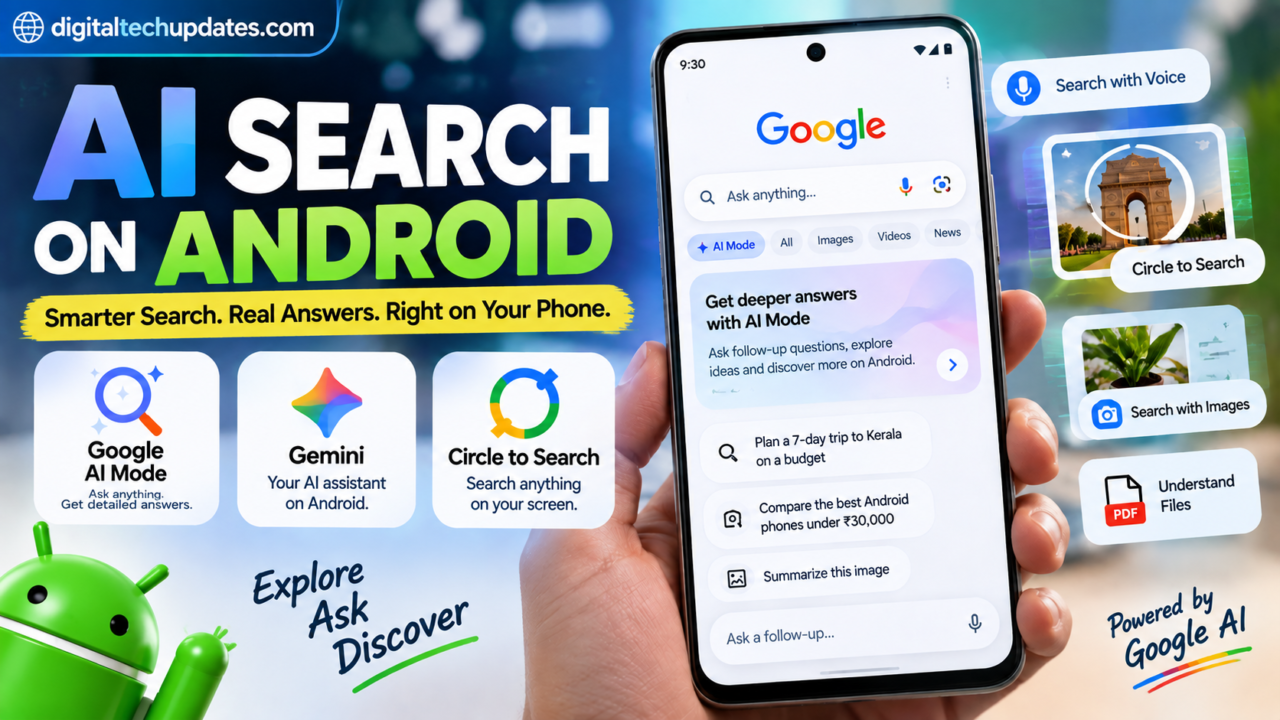
Searching on an Android phone is no longer limited to typing a few keywords into Google. With AI-powered features such as Google AI Mode, Gemini and Circle to Search, users can ask detailed questions, search with their voice or images, and get more contextual answers.
For Android users in India, Google has already rolled out AI Mode in Search, allowing users to ask questions using text, voice and images and continue the conversation with follow-up questions.
But how exactly does AI Search work on an Android phone, and which features can you use today?
Here is everything you need to know.
What Is AI Search on Android?
AI Search on Android refers to Google’s AI-powered search features that allow you to interact with Search in a more conversational way.
Instead of searching for several short keywords, you can ask a longer question and then continue with follow-up questions.
For example, instead of searching:
“Best phone under ₹30,000”
you could ask:
“What are the best Android phones under ₹30,000 for photography and gaming, and what are their main differences?”
Google’s AI Mode can break complex questions into multiple subtopics, search across different sources and bring the information together into an AI-generated response with links to explore further.
This makes AI Search particularly useful for research, comparisons, how-to questions and more complicated searches.
How Does Google AI Mode Work on Android?
Google AI Mode is designed for questions that may require more than one traditional search.
You can access AI Mode on Android in several ways, depending on availability:
- Open Google Search.
- Enter your question.
- Select AI Mode when the option appears.
- Alternatively, open the Google app and select AI Mode from the available Search interface.
- Type your question and submit it.
- Continue asking follow-up questions if you need more information.
Google also provides access through google.com/ai where supported.
The exact interface can vary depending on your device, Google account, language and region.
Why Follow-Up Questions Matter
One of the useful aspects of AI Mode is that you don’t necessarily have to start a new search every time.
For example:
Question 1:
“What should I check before buying an Android phone?”
Follow-up:
“What about battery life?”
Another follow-up:
“Which specifications matter most for gaming?”
This allows the search to continue as a conversation.
How to Use AI Search on an Android Phone
If AI Mode is available on your device and account, you can use it for different types of searches.
1. Search Using Text
Open Google Search or the Google app and enter a detailed question.
For example:
“Explain the difference between AMOLED and OLED displays in simple words.”
AI Mode can provide a conversational response and links to relevant web sources.
2. Search Using Your Voice
You don’t always need to type your question.
In AI Mode, tap the microphone option in the search field and speak your question.
This can be particularly useful when:
- You are driving or walking
- You want to ask a long question
- Typing is inconvenient
- You want to search naturally
Google’s current Android instructions confirm that AI Mode supports voice questions and follow-up voice queries.
3. Search With an Image
AI Search can also work with images.
You can use Google Lens or the image option to upload or capture an image and then ask a question about it.
For example, you could take a picture of:
- A gadget
- A plant
- A product
- A document
- A piece of text
- An unfamiliar object
You can then ask a question about what you see.
Google says AI Mode supports image-based questions, including uploading images and asking follow-up questions about them.
4. Search Using Files
Google’s current AI Mode documentation also supports uploading certain files, including PDFs, local files and Drive files, where the feature is available.
For example, you could upload a document and ask:
“Summarize the important points from this PDF.”
You can then ask follow-up questions about the document.
Gemini AI on Android Phones
Gemini is another important part of Google’s AI ecosystem on Android.
Google has been expanding Gemini capabilities across Android devices, with newer AI experiences rolling out in stages across devices. Google announced Gemini Intelligence in 2026, with initial availability expanding through newer Samsung Galaxy and Google Pixel devices before broader Android expansion.
Gemini can help with tasks such as:
- Answering questions
- Summarizing information
- Planning
- Understanding content
- Working with supported apps
- Helping with everyday tasks
However, Gemini features are not identical on every Android phone. Availability can depend on the phone model, Android version, Google account, language, region and the particular feature being used.
So if someone has a feature on a newer Pixel or Samsung phone, that does not necessarily mean the same feature will appear on every Android device.
What Is Circle to Search on Android?
Circle to Search lets you search information displayed on your phone screen without having to leave the app you’re currently using.
You can circle, highlight, scribble or tap an image or text and search for it.
For example, imagine you are watching a video and see a pair of shoes you like.
Instead of taking a screenshot and manually opening Google Search, you can use Circle to Search and select the item directly on your screen.
Google says Circle to Search is available on selected Android phone models, including Pixel 6 and later. Availability varies across devices.
How to Use Circle to Search
On a supported Android phone:
- Touch and hold the Home button or navigation handle.
- Circle, highlight, scribble or tap the object or text you want to search.
- Google Search results will appear.
- You can then explore the results or refine your search.
You can also add another question to refine the search.
For example:
Select a shoe → “Find similar shoes”
This makes visual search much more useful than simply searching for a generic keyword.
AI Search vs Traditional Google Search
| Feature | Traditional Google Search | AI Search / AI Mode |
|---|---|---|
| Keyword searches | Yes | Yes |
| Natural-language questions | Yes | Yes |
| Follow-up questions | Limited | Yes |
| AI-generated responses | Some Search experiences | Yes |
| Voice search | Yes | Yes |
| Image-based questions | Google Lens | Yes, where supported |
| Complex research | Multiple searches may be needed | Can combine related searches |
| Web links | Yes | Yes |
| Conversational interaction | Limited | Stronger |
AI Mode isn’t necessarily a replacement for traditional Search. For some searches, a normal list of web results may be faster and more useful.
Google itself notes that AI Mode can make mistakes, so important information should still be checked against the linked sources and other search results.
Which Android Phones Support AI Search?
There isn’t one universal list of Android phones that provides exactly the same AI features.
Availability can depend on:
- Android version
- Phone manufacturer
- Device model
- Google app version
- Google Play services
- Google account
- Country
- Language
- Feature rollout
For example, Google’s Circle to Search documentation specifically describes availability on selected Android phones, while Android’s AICore system is available on Android 14 and higher but still has device- and manufacturer-dependent feature availability.
Therefore, simply having an Android phone does not guarantee that every AI feature will be available.
How to Get the Latest AI Search Features on Android
If you cannot find AI Mode, Circle to Search or another AI feature, try these steps.
Update the Google App
Open Google Play Store and check whether an update is available for the Google app.
Update Your Phone
Check your phone’s system software for available Android updates.
Check Your Google Account
Some features require you to be signed in to a Google account.
Check Your Region and Language
Google AI features can have different availability depending on country and language.
Google’s AI Mode is available in India, and Google has also expanded AI Mode to additional languages, including Hindi.
Check Device Compatibility
If a feature is missing even after updating your phone and Google apps, your particular device may not support that feature yet.
Why Is AI Mode Not Showing on My Android Phone?
There are several possible reasons.
Your feature may still be rolling out.
Google frequently introduces Search features gradually.
Your device may not support a particular feature.
This is especially relevant for features such as Circle to Search.
Your Google app may be outdated.
Updating the app can sometimes provide access to newly available features.
Your language or country may affect availability.
Your account may not have access to a particular experimental feature.
Google also warns that the AI Mode interface and functionality can continue to change as the service develops.
Is AI Search on Android Free?
Basic Google Search and many AI-powered Search experiences are available without requiring a paid Google AI subscription.
However, some advanced AI capabilities, models or usage limits can depend on Google’s current plans, account type and availability.
For example, Google currently documents advanced Gemini models within AI Mode with specific eligibility and usage conditions.
Therefore, users should check the feature’s current availability rather than assuming every AI capability is included on every Android phone.
Is AI Search Better Than Normal Google Search?
It depends on what you are trying to find.
For a simple query such as:
“Weather today”
traditional Search can be straightforward.
For a complicated question involving several parts, AI Mode can be useful because it is designed to handle more conversational and multi-step searches.
For visual searches, Circle to Search and Google Lens can be particularly useful.
The important point is that AI Search should not be treated as automatically correct. Google says AI Mode can make mistakes and recommends checking important information using multiple sources.
Frequently Asked Questions
What is AI Search on Android?
AI Search on Android refers to Google’s AI-powered Search experiences that allow users to ask natural-language questions, use voice and images, and continue searches with follow-up questions.
How do I use Google AI Mode on Android?
Open Google Search or the Google app and select AI Mode if it is available. You can then enter a question using text, voice or supported image/file inputs.
Is Google AI Mode available on all Android phones?
No. Availability can depend on factors including region, language, Google account and feature rollout.
Is Gemini available on Android phones?
Gemini is available across Android, but specific Gemini capabilities can vary by device, account, region and software version.
What is Circle to Search?
Circle to Search allows users on supported Android devices to select text or objects on their screen and search for information without switching away from the current app.
Why can’t I see AI Mode on my phone?
Possible reasons include device compatibility, regional or language availability, account eligibility, software version or a gradual feature rollout.
Can I search using images on Android?
Yes. Google AI Mode supports image-based questions where available, including taking or uploading an image and asking questions about it.
Final Takeaway
AI is changing how people search on Android phones. Google AI Mode, Gemini and Circle to Search give users more ways to ask questions, understand what’s on their screen and explore information.
For Indian Android users, Google has already brought AI Mode to Search, while additional AI capabilities continue to expand across Android devices.
The biggest advantage is flexibility: you can type a question, speak it, use an image or select something directly on your screen.
At the same time, AI-generated answers should be checked when the information is important, because AI systems can sometimes produce inaccurate or incomplete answers.
Official Sources
Thalla Lokesh
Thalla Lokesh is a Digital Marketing Strategist and SEO Specialist with over 12 years of experience in helping businesses grow their online presence. Since beginning his career in 2013, he has successfully worked across industries including healthcare, education, technology, and e-commerce. He specializes in search engine optimization (SEO), content marketing, keyword strategy, and link building, with a strong focus on delivering measurable results. Lokesh has helped brands achieve top rankings on Google through data-driven strategies, high-quality content, and ethical SEO practices aligned with search engine guidelines. As the founder of Honey Web Solutions , a Tirupati-based digital marketing company, he actively works with clients to improve organic traffic, lead generation, and online visibility. He also contributes expert insights on digital marketing trends, AI SEO, and content strategies through blogs and industry platforms.