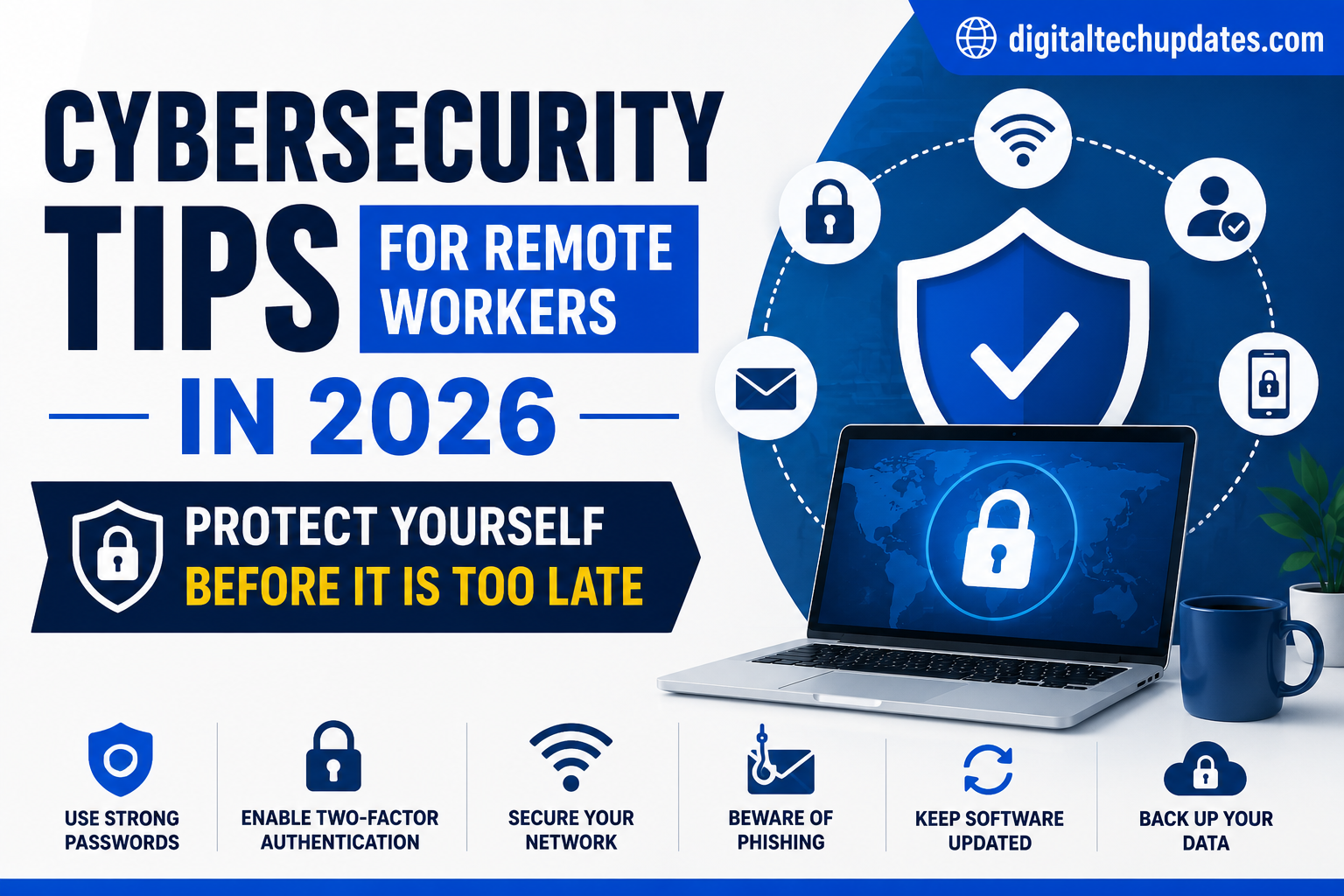
Cybersecurity Tips for Remote Workers in 2026: Protect Yourself Before It Is Too Late

Remote work has been the new normal for several years now — but most people who work from home are still operating with the same casual security habits they had when they worked in a coffee shop on their personal laptop.
The problem is that attackers know this. Cybercriminals specifically target remote workers because they lack the enterprise-grade security infrastructure of office environments. Phishing attacks, ransomware, credential theft, and man-in-the-middle attacks have all increased significantly as the remote workforce has grown.
In 2026, a single security breach can cost an individual or a business not just money — but clients, reputation, and years of work.
This guide gives you practical, non-technical cybersecurity tips that any remote worker can implement today — no IT department required.
Why Remote Workers Are a Primary Target
Office environments have layers of security: corporate firewalls, VPN infrastructure, IT teams monitoring network traffic, and controlled access to systems. Remote workers usually have:
- A home Wi-Fi router that has not been updated since it was installed
- A personal computer that mixes work and personal browsing
- No centralised monitoring or threat detection
- A tendency to use the same passwords across multiple services
- Susceptibility to phishing because they are not used to verifying every email carefully
Attackers exploit all of these gaps systematically. And with AI now being used to generate more convincing phishing emails, social engineering attacks, and deepfake voice scams, the threat is more sophisticated than ever.
The 12 Most Important Cybersecurity Tips for Remote Workers
1. Use a VPN Every Single Time You Work Outside Your Home
A Virtual Private Network (VPN) encrypts your internet traffic, hiding it from anyone trying to intercept it on public Wi-Fi — coffee shops, airports, co-working spaces, hotels. Never work on sensitive files or access company systems on public Wi-Fi without a VPN.
Recommended VPNs for professionals: NordVPN, ExpressVPN, ProtonVPN (free plan available). For Indian remote workers, ProtonVPN’s free plan is a solid starting point with no data caps.
2. Enable Two-Factor Authentication (2FA) on Everything
Two-factor authentication requires a second verification step beyond your password — typically a code from your phone. Even if someone steals your password, they cannot access your account without the second factor.
Enable 2FA on: email, cloud storage, work apps, banking, social media, and especially your password manager. Use an authenticator app (Google Authenticator, Authy) rather than SMS-based 2FA — SMS codes can be intercepted through SIM-swap attacks.
3. Use a Password Manager
Human beings are terrible at passwords. We reuse them, make them simple, and write them on sticky notes. A password manager solves all of this.
It generates a unique, complex password for every website, remembers all of them, and auto-fills them securely. You need to remember only one strong master password.
Recommended: Bitwarden (excellent free plan), 1Password ($3/month), Dashlane.
4. Keep Your Router Firmware Updated
Your home Wi-Fi router is the gateway to your entire home network. Most people never update their router firmware — leaving known security vulnerabilities unpatched for years.
Log into your router’s admin panel (usually 192.168.1.1 in your browser) and check for firmware updates. Do this at least once every 6 months. Also:
- Change the default router admin password
- Use WPA3 encryption if your router supports it
- Create a separate guest network for IoT devices (smart TVs, speakers)
5. Be Extremely Careful With Phishing Emails
Phishing remains the number one entry point for cyberattacks in 2026. AI has made phishing emails significantly more convincing — no more obvious spelling mistakes and broken English. Modern phishing emails are personalised, professionally written, and designed to look exactly like legitimate communications from your bank, your company, or a colleague.
Red flags to watch for:
- Urgency or pressure (“Your account will be closed in 24 hours”)
- Requests to click a link and enter credentials
- Email addresses that are slightly off (paypa1.com instead of paypal.com)
- Unexpected attachments from known contacts (their account may be compromised)
When in doubt: go directly to the website by typing the URL yourself — never click links in suspicious emails.
6. Separate Work and Personal Devices Where Possible
Mixing work and personal activities on the same device creates unnecessary risk. If your personal device has a game with malware, it could compromise your work files. If your work device is compromised, your personal banking data may be at risk.
At minimum: use different browsers for work and personal (Chrome for work, Firefox for personal) with separate profiles and saved passwords.
7. Lock Your Screen When You Step Away
This sounds simple but is frequently overlooked. If you work from home with others around — family, flatmates, visitors — an unlocked screen is a real security risk. Set your computer to lock automatically after 2 to 5 minutes of inactivity, and develop the habit of pressing Windows + L (or Command + Control + Q on Mac) every time you step away.
8. Encrypt Your Device Storage
Device encryption ensures that even if someone steals your laptop, they cannot access your files without your login password.
On Windows: Enable BitLocker (built-in on Windows 10/11 Pro) On Mac: Enable FileVault (System Preferences → Security & Privacy) On Android: Most modern Android phones encrypt storage by default On iPhone: All iPhones are encrypted by default when a passcode is set
9. Use Secure, Encrypted Communication Tools
Not all messaging and communication tools are equally secure. For sensitive work conversations:
End-to-end encrypted messaging: Signal (best), WhatsApp (acceptable) Video calls: Zoom with end-to-end encryption enabled, Google Meet, Microsoft Teams File sharing: Avoid sending sensitive files over regular email. Use encrypted cloud storage (Google Drive with access controls, Dropbox with two-factor enabled, or OneDrive for Business).
A common but underappreciated risk: sharing your screen on video calls and accidentally revealing sensitive information — open tabs, documents, notifications, or background details that show your home address.
Before sharing your screen: close all unnecessary tabs and applications. Use a virtual background on video calls if your home environment reveals anything you do not want visible.
11. Back Up Your Data Regularly
Ransomware attacks encrypt your files and demand payment for the decryption key. The only complete defence is having a recent backup that you can restore from.
Follow the 3-2-1 backup rule:
- 3 copies of your data
- 2 different types of storage (computer + external drive or cloud)
- 1 offsite backup (cloud)
Automate backups so they happen without you thinking about it. Google Drive, OneDrive, and iCloud all offer automatic backup options.
12. Keep All Software Updated
Software updates patch security vulnerabilities. Delaying updates means running known vulnerable software — which attackers actively exploit.
Enable automatic updates for: operating system, browser, browser extensions, security software, and all work applications. Yes, updates are sometimes inconvenient. They are far less inconvenient than a ransomware attack.
Building a Security Routine
Cybersecurity is not a one-time setup — it is an ongoing habit. Consider adding these to your monthly routine:
- Check HaveIBeenPwned.com to see if any of your email addresses appear in data breaches
- Review the apps and devices connected to your major accounts (Google, Microsoft, Apple) and revoke access for anything unfamiliar
- Check for and install any pending software updates
- Review your password manager for reused or weak passwords and update them
The remote workers who get hacked are not necessarily careless people — they are simply people who never built a security routine. Ten minutes per month prevents the majority of common attacks.
Thalla Lokesh
Thalla Lokesh is a Digital Marketing Strategist and SEO Specialist with over 12 years of experience in helping businesses grow their online presence. Since beginning his career in 2013, he has successfully worked across industries including healthcare, education, technology, and e-commerce. He specializes in search engine optimization (SEO), content marketing, keyword strategy, and link building, with a strong focus on delivering measurable results. Lokesh has helped brands achieve top rankings on Google through data-driven strategies, high-quality content, and ethical SEO practices aligned with search engine guidelines. As the founder of Honey Web Solutions , a Tirupati-based digital marketing company, he actively works with clients to improve organic traffic, lead generation, and online visibility. He also contributes expert insights on digital marketing trends, AI SEO, and content strategies through blogs and industry platforms.