Gemini Can Remember Where You Put Things: How the New Android Feature Works

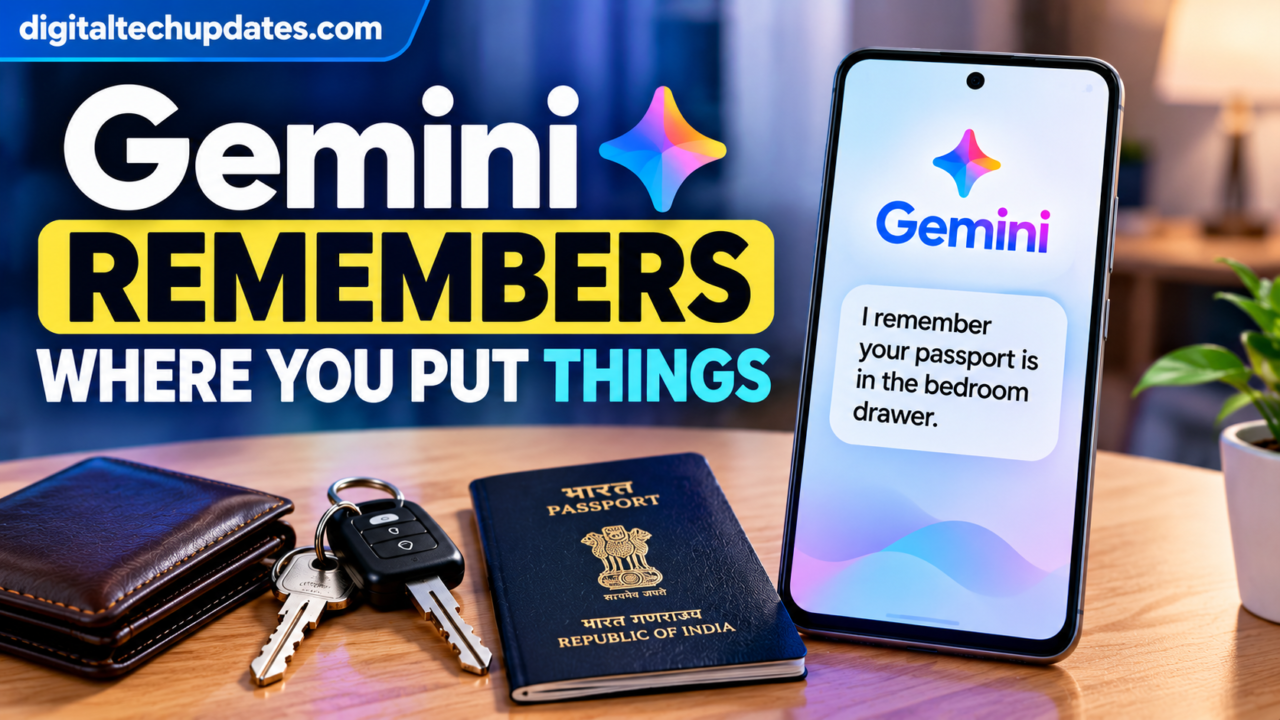
Have you ever kept your passport, spare keys, important documents or charger somewhere “safe” and then completely forgotten where you put them?
Google has introduced a new Android feature that can help with exactly this problem. With Gemini and Find Hub, users can tell Gemini where they placed a physical item and ask about its location later.
For example, you can say, “Hey Google, remember in Find Hub that I put my passport in my bedroom drawer.” Later, you can ask Gemini where your passport is, or open Find Hub and check your saved items.
The feature is particularly useful for items that do not have a physical tracking tag attached to them.
But there is an important point: Gemini is not live-tracking these objects. It is remembering the storage information you provide and saving it in Find Hub.
Here’s how the new feature works and how you can use it on a compatible Android phone.
What Is Gemini’s “Remember Where I Put Things” Feature?
Google’s new Remembered Items feature connects Gemini with Find Hub to help users keep track of physical belongings.
Instead of trying to remember where you placed something, you can ask Gemini to save the item’s name and location.
For example:
“Hey Google, remember in Find Hub that I put my passport in the top bedroom drawer.”
Gemini can save that information so you can retrieve it later.
You can also manually add remembered items through the Find Hub app. Google’s current documentation lists examples including passports, birth certificates, car keys, wallets, glasses, TV remotes, batteries, tools and other physical belongings.
The September 2026 Android update introduced the capability as part of Google’s latest Android features.
How Does Gemini Remember Where You Put Things?
The process is fairly simple.
First, you tell Gemini what you want it to remember and where you placed it.
Gemini then saves the information in Find Hub.
Later, you can ask Gemini where the item is, or open the Remembered Items section inside Find Hub to see your saved items.
For example:
Step 1: Put your passport in a drawer.
Step 2: Tell Gemini:
“Hey Google, remember in Find Hub that my passport is in the top bedroom drawer.”
Step 3: Later, ask:
“Hey Google, where is my passport?”
Gemini can recall the saved location.
This can be useful for items you don’t want to attach a tracker to.
How to Ask Gemini to Remember an Item
You can activate Gemini by saying “Hey Google” or by using the supported touch activation method on your Android device.
Then clearly state the item and where you placed it.
Here are some examples:
“Hey Google, remember in Find Hub that my passport is in the bedroom drawer.”
“Save to Find Hub that the spare house key is under the front porch mat.”
“Gemini, remember that my green umbrella is by the front door.”
Google specifically recommends mentioning Find Hub when asking Gemini to save or retrieve remembered items.
Being specific can also reduce the chance of Gemini misunderstanding your request.
How to Find the Item Later
There are two main ways to find a remembered item.
Method 1: Ask Gemini
Simply activate Gemini and ask where you put the item.
For example:
“Hey Google, where is my passport?”
Or:
“Where did I put the AA batteries?”
You can also ask:
“Where’s my car key?”
Google provides these types of examples in its official Find Hub documentation.
Method 2: Open Find Hub
You can also check your saved items manually.
- Open the Find Hub app.
- Open Remembered Items.
- Browse your saved items.
- Select the item you want to find.
- Use the search bar if you have many remembered items.
This gives you a central place to see the physical items you’ve asked Gemini or Find Hub to remember.
What Things Can Gemini Remember?
The feature isn’t limited to keys or passports.
Google’s documentation gives several categories of physical items that can be remembered.
Important Documents
You can remember where you stored things such as:
- Passport
- Birth certificate
- Car title
- Tax documents
- Other important papers
Everyday Items
Examples include:
- House keys
- Car keys
- Wallet
- Glasses
- TV remote
- Chargers
Household Supplies and Tools
You can also remember locations of:
- Batteries
- Screwdrivers
- Paint cans
- Gardening tools
- Household supplies
Items You Lent to Someone
Google also lists lent items as a use case.
For example, you could remember that a particular book or charger was lent to a friend or colleague.
Can Gemini Remember Where I Put My Passport?
Yes.
The passport is actually one of Google’s examples for the feature.
You could say:
“Hey Google, remember in Find Hub that I put my passport in my bedroom drawer.”
When you need it later, ask Gemini:
“Where is my passport?”
You can also check the Remembered Items section in Find Hub.
This could be especially useful before travelling, when important documents may be stored for several weeks or months.
Can Gemini Remember Where I Put My Keys?
Yes.
For example, you could say:
“Save to Find Hub that my spare house key is in the kitchen drawer.”
Later:
“Where did I put my spare house key?”
If you move the key to another location, you can update the saved information instead of creating another entry.
Can You Add a Photo of the Item?
Yes.
Google says you can add photos to remembered items, and the current Find Hub documentation says you can add up to two photos to an item.
You can also add notes to provide additional information that may help you identify the item later.
For example, if you have several similar storage boxes, adding a photo and a note could make it easier to identify which box contains a particular item.
Does Gemini Track the Item in Real Time?
No. This is an important distinction.
The Remembered Items feature should not be confused with a physical tracking device.
If you tell Gemini:
“My passport is in the bedroom drawer.”
Find Hub remembers the information you provided.
It does not mean Gemini can continuously detect where your passport is.
Google’s Android community documentation explicitly states that the Remembered Items feature does not track the real-time location of items and that accuracy depends on the information provided by the user.
So if you move the passport from the drawer to a safe, you should update its location.
How to Update an Item’s Location
If you move a remembered item, you can tell Gemini about the new location.
For example:
“Hey Google, update in Find Hub that my passport is now in the home safe.”
Or:
“Move my spare house key to the kitchen drawer in Find Hub.”
Google recommends explicitly using words such as “update” or “move” when changing an item’s location.
There is also a manual option in Find Hub.
You can open the remembered item and change its:
- Storage spot
- Location
- Name
- Notes
- Photos
If you use the exact name of an existing item, Gemini can update its storage spot rather than creating a duplicate item.
How to Manually Add an Item in Find Hub
You don’t have to use your voice every time.
Google’s current instructions allow users to add items directly through Find Hub.
The general process is:
- Open Find Hub.
- Open Remembered Items.
- Tap the option to add an item.
- Enter the item’s name.
- Add the storage spot.
- Add the location if required.
- Save the item.
You can also add photos and notes to help identify the item later.
How to Remove a Remembered Item
If you no longer need an item in your list, you can remove it.
Open:
Find Hub → Remembered Items → Select the item → Remove from Find Hub → Remove
This allows you to keep your remembered-items list organized.
What Android Version Is Required?
According to Google’s current Find Hub documentation, the feature requires:
- An Android device running Android 16 or later
- The Find Hub app
- The Gemini app
- The same Google Account signed into both apps
- Gemini set as the device’s default digital assistant
Google’s September 2026 Android announcement also says the feature is available on Android 16+ devices in countries where Gemini and Find Hub are supported.
This means simply having an Android phone does not automatically guarantee that the feature will appear.
Which Android Phones Support Remembered Items?
Google does not describe this as a feature available identically on every Android phone.
Availability depends on factors such as:
- Android version
- Device compatibility
- Google account
- Country or region
- Gemini availability
- Find Hub availability
- Software configuration
The current requirement published by Google is Android 16 or later, along with the required apps and account setup.
Therefore, users should check their specific device rather than assuming that every Android 16 phone has identical AI functionality.
What If Gemini Doesn’t Save the Item?
If Gemini doesn’t save your item, Google recommends checking a few things.
Make Sure Gemini Is Your Default Assistant
Open your Android settings and check the digital assistant setting.
Gemini needs to be selected as your device’s default digital assistant for this feature.
Mention Find Hub Clearly
Instead of saying:
“Remember my wallet.”
Try:
“Hey Google, remember in Find Hub that my wallet is on the kitchen counter.”
Google specifically recommends being explicit about Find Hub when using remembered items.
Check Find Hub Connected Apps
Google’s troubleshooting instructions also recommend checking whether Find Hub is enabled as a connected app in Gemini.
In Gemini, check the connected apps settings and make sure Find Hub is enabled.
Check Your Internet Connection
Gemini needs an active internet connection to process voice requests and save new remembered items.
Previously saved items can generally still be viewed in Find Hub when connectivity is temporarily unavailable.
Gemini Memory vs Find Hub Remembered Items
There is an important difference between Gemini’s broader memory/personalization features and the new Find Hub Remembered Items feature.
| Feature | Gemini Memory | Find Hub Remembered Items |
|---|---|---|
| Main purpose | Personalize Gemini responses | Remember physical items |
| Remembers preferences | Yes | No |
| Remembers where an item was placed | Not the primary purpose | Yes |
| Works with Find Hub | No | Yes |
| Physical storage location | Not the main use | Yes |
| Android 16 requirement | Not necessarily | Yes, according to current Find Hub documentation |
The new feature discussed in this article is specifically about physical belongings and their saved locations in Find Hub. It should not be confused with Gemini’s broader personalization or memory capabilities.
Useful Everyday Examples
The feature could be useful in many everyday situations.
Before a Trip
Save where you put your:
- Passport
- Travel documents
- Foreign currency
- Spare keys
At Home
Remember where you stored:
- Spare batteries
- Important documents
- Tools
- Remote controls
- Chargers
For Seasonal Items
You could remember where you stored:
- Winter clothes
- Decorations
- Camping equipment
- Gardening tools
For Borrowed Items
You can remember where a book, charger or tool was placed after lending it to someone. Google specifically includes lent items among the supported use cases.
Privacy and Access
Remembered items are associated with your Google Account and are intended for your personal use.
Google’s current documentation says remembered items are stored privately in an individual Google Account and cannot currently be shared with family members through the remembered-items feature.
As with other AI services, users should avoid entering information they don’t want stored or processed. Google’s Gemini privacy documentation explains how Gemini data and connected-app access are handled.
For sensitive documents such as passports, users should also consider their normal physical security practices rather than relying exclusively on an AI reminder.
Is Gemini’s Remembered Items Feature Useful?
The feature solves a very simple but common problem: forgetting where you put something.
It doesn’t replace a physical tracker and doesn’t provide live location tracking.
Instead, it works more like an AI-powered memory for physical storage locations.
If you regularly forget where you put spare keys, important documents, chargers, tools or other household items, being able to ask Gemini later could save time.
The biggest benefit is that you don’t have to remember the location yourself — you only need to remember that you previously asked Gemini or Find Hub to save it.
Frequently Asked Questions
Can Gemini remember where I put things?
Yes. With Find Hub’s Remembered Items feature, Gemini can save information about where you placed supported physical items and help you recall that information later.
Can Gemini remember where I put my keys?
Yes. Spare house keys and car keys are among the examples listed by Google.
Can Gemini remember where I put my passport?
Yes. Google specifically uses a passport as an example of an item that can be remembered in Find Hub.
Does Gemini track my item in real time?
No. Remembered Items stores the location information you provide. It is not a real-time tracking system for ordinary physical objects.
What is Find Hub Remembered Items?
It is a Find Hub feature that lets users save information about physical items and where they were placed, with Gemini integration for saving and recalling that information.
What Android version is required?
Google’s current documentation says you need an Android device running Android 16 or later, along with Find Hub and Gemini, the same Google Account on both apps, and Gemini set as the default digital assistant.
Can I update an item’s location?
Yes. You can tell Gemini to update or move the item to a new location, or manually edit the item in Find Hub.
Can I add a photo?
Yes. Google says you can add photos to remembered items, with the current documentation allowing up to two photos.
Can I delete a remembered item?
Yes. Open the Remembered Items section in Find Hub, select the item and use the removal option.
Final Takeaway
Google’s new Gemini + Find Hub Remembered Items feature brings a simple AI solution to an everyday problem.
Instead of wondering where you put your passport, spare keys, wallet, charger or important documents, you can tell Gemini where you stored the item and ask for the information later.
The feature requires Android 16 or later and the required Gemini and Find Hub setup. Most importantly, it should not be confused with live tracking: Gemini remembers the location information you provide rather than continuously tracking the physical object.
For Android users who frequently forget where they put things, this could become a useful part of everyday phone usage.
Official Sources
- Google Android Blog — September 2026 Android Drop
- Google Android Help — Remembered Items in Find Hub
Thalla Lokesh
Thalla Lokesh is a Digital Marketing Strategist and SEO Specialist with over 12 years of experience in helping businesses grow their online presence. Since beginning his career in 2013, he has successfully worked across industries including healthcare, education, technology, and e-commerce. He specializes in search engine optimization (SEO), content marketing, keyword strategy, and link building, with a strong focus on delivering measurable results. Lokesh has helped brands achieve top rankings on Google through data-driven strategies, high-quality content, and ethical SEO practices aligned with search engine guidelines. As the founder of Honey Web Solutions , a Tirupati-based digital marketing company, he actively works with clients to improve organic traffic, lead generation, and online visibility. He also contributes expert insights on digital marketing trends, AI SEO, and content strategies through blogs and industry platforms.