Salary Slip Format in Excel: Free Template, Download Guide and Formulas

Creating a salary slip every month can be time-consuming, especially for small businesses, startups, and companies that manage payroll manually. A well-designed salary slip format in Excel makes this task easier by organizing employee details, monthly earnings, deductions, and take-home salary in one place.
Whether you are an employer, HR professional, accountant, or small business owner, Excel can help you prepare a professional salary slip without investing in expensive payroll software.
In this guide, you will learn how to create a salary slip in Excel, which details to include, how to calculate gross and net salary using formulas, and how to prepare a printable payslip for employees.
What Is a Salary Slip?
A salary slip, also known as a payslip, is a document that shows an employee’s salary details for a particular month. It provides a breakdown of earnings, allowances, deductions, and the final amount payable to the employee.
Employers generally provide salary slips monthly as part of their payroll process. Employees may use them as supporting documents for loan applications, rental agreements, employment verification, and personal financial records. Acceptance depends on the requirements of the institution requesting the document.
A typical salary slip contains the employer’s information, employee details, salary period, attendance information, earnings, deductions, and net salary.
Salary Slip Format in Excel: Sample Template
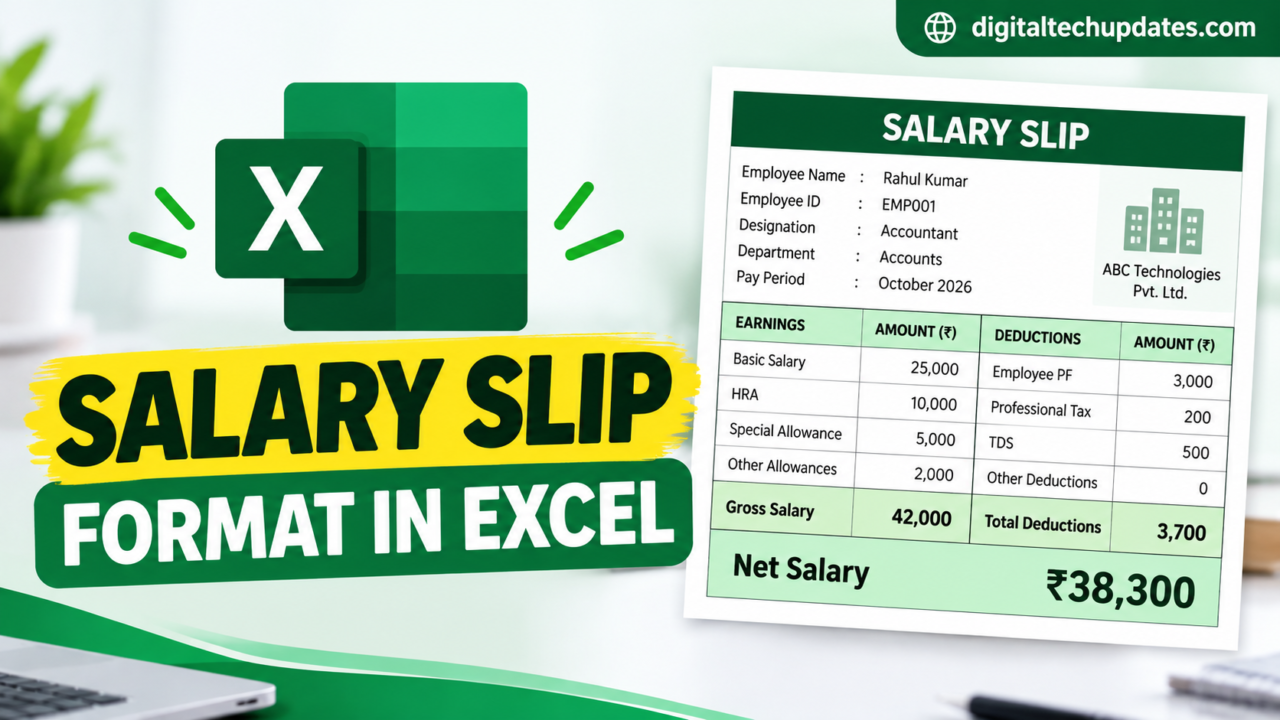
You can create a salary slip in Microsoft Excel using the following sample layout. Customize the fields according to your organization’s salary structure and applicable requirements.
Sample salary slip
ABC Technologies Pvt. Ltd.
Salary Slip for October 2026
| Employee Details | Information |
|---|---|
| Employee Name | Rahul Kumar |
| Employee ID | EMP001 |
| Designation | Accountant |
| Department | Accounts |
| Pay Period | October 2026 |
| Total Working Days | 31 |
| Paid Days | 31 |
| Date of Joining | 01-04-2024 |
Earnings and deductions
|
|---|
Note: This is an illustrative example, not a recommended salary structure or statutory deduction calculation. The sample amounts are hypothetical. Actual salary components and deductions depend on the employee’s circumstances, applicable rules, and the employer’s payroll policy.
What Should a Salary Slip Format Include?
A professional salary slip should present the employee’s salary information clearly. The following sections are useful when creating an Excel payslip.
1. Company details
Include the following information at the top of the salary slip:
- Company or organization name
- Office address
- Company logo, if applicable
- Contact details, where appropriate
- Salary month and year
These details help identify the employer and the period for which the salary is being paid.
2. Employee details
The employee information section may contain:
- Employee name and employee ID
- Designation and department
- Date of joining
- Pay period and pay date
- Total working days and paid days
- Applicable payroll identifiers, such as UAN or ESI number
Include only the personal and employment information needed for payroll administration. Sensitive information, such as bank account numbers and identification numbers, should be masked or handled securely where appropriate.
3. Earnings
The earnings section shows the different components of an employee’s salary.
| Salary Component | Description |
|---|---|
| Basic Salary | The basic component of salary |
| Dearness Allowance (DA) | Allowance provided where applicable |
| House Rent Allowance (HRA) | Allowance towards housing expenses |
| Special Allowance | An additional salary component |
| Conveyance Allowance | A travel-related allowance, where applicable |
| Bonus or Incentives | Additional earnings when applicable |
| Other Allowances | Other components defined by the employer |
Not every employee receives all these components. Use the salary structure applicable to the individual employee.
4. Deductions
The deductions section lists amounts deducted from an employee’s earnings, where applicable.
Common examples include:
- Employee provident fund contribution
- Employees’ State Insurance contribution
- Professional tax
- Tax deducted at source (TDS)
- Salary advance recovery
- Other authorized deductions
The applicability and calculation of statutory deductions depend on current rules, employee eligibility, salary components, and other relevant conditions. Avoid using the same fixed deduction percentage for every employee without checking the applicable requirements.
5. Gross salary and net salary
Gross salary is the total of the employee’s earnings before employee-side deductions.
Net salary, often called take-home salary, is the amount remaining after the relevant deductions.
The basic calculation is:
Net Salary = Gross Salary − Total Employee Deductions
Displaying both figures helps employees understand how their final payment was calculated.
How to Create a Salary Slip in Excel Step by Step
Follow these steps to prepare your own salary slip template.
Step 1: Open Microsoft Excel
Open a new workbook and rename the first worksheet as Salary Slip.
Create a heading at the top of the worksheet with your company name. Add the company address and the salary month below it.
Merge and center the heading cells if you want a more professional appearance.
Step 2: Add employee information
Create fields for the employee’s name, ID, designation, department, date of joining, pay period, and paid days.
You can arrange these details in two columns to make the template compact and easy to print.
Step 3: Create earnings and deductions columns
Create two side-by-side sections:
- Earnings and Amount
- Deductions and Amount
Add the salary components relevant to the employee. Leave out deductions that do not apply rather than automatically displaying incorrect or misleading amounts.
Step 4: Add Excel formulas
Assume your earnings amounts are entered in cells B15 through B18, and your deductions are entered in D15 through D18.
Use the following formulas.
Calculate gross salary
=SUM(B15:B18)
This adds all the earnings entered in the specified cells.
Calculate total deductions
=SUM(D15:D18)
This adds the deductions entered in the specified cells.
Calculate net salary
If gross salary is in B19 and total deductions are in D19, enter:
=B19-D19
The result is the net salary before considering any other adjustments not included in the template.
Make sure that the formula ranges match the actual cells in your worksheet.
Step 5: Format the salary slip
Apply these formatting options to improve readability:
- Use bold text for the company name and section headings.
- Apply borders around the employee details and salary tables.
- Format monetary amounts as Indian rupees.
- Use a consistent font and font size.
- Highlight gross salary and net salary.
- Set the print area to include only the salary slip.
- Select A4 paper size and preview the page before printing.
Save the workbook as an Excel file (.xlsx). You can also export the completed salary slip as a PDF before sharing it with the employee.
Useful Excel Formulas for Salary Slip Preparation
Excel formulas can reduce manual calculations and make monthly payroll preparation more efficient.
| Purpose | Example Formula |
|---|---|
| Total earnings | 0 |
| Total deductions | 0 |
| Net salary | 0 |
| Paid days from working and unpaid days | 0 |
| Prorated salary | #NAME? |
These are illustrative formulas. Replace the cell references with the cells used in your workbook.
For prorated salary, confirm the organization’s payroll policy and applicable rules before using the calculation. Different salary components may require different treatment.
Salary Slip Format in Excel for Small Businesses
A simple Excel salary slip is often sufficient for a small business with a limited number of employees. Instead of preparing a new document from scratch every month, you can create a reusable template.
For better payroll management, consider maintaining two worksheets:
Employee Master: Store employee IDs, names, designations, departments, and other necessary employment details.
Monthly Payroll: Record the pay period, paid days, earnings, deductions, gross salary, and net salary for each employee.
A separate salary slip worksheet can retrieve the appropriate records from these tables using formulas such as SUMIFS or lookup functions. This approach can reduce repetitive data entry and make it easier to correct payroll records.
For businesses with many employees or complex payroll requirements, dedicated payroll software may be more practical than managing everything manually in Excel.
Advantages of Using a Salary Slip Template in Excel
Using an Excel salary slip format offers several practical benefits.
Easy customization: You can change the company name, logo, salary components, and layout to match your organization’s needs.
Automatic calculations: Formulas can calculate total earnings, deductions, and net salary, reducing repetitive arithmetic.
Reusable template: Once the layout is ready, you can reuse it for subsequent payroll periods.
Convenient recordkeeping: Maintaining a structured workbook helps organize payroll information by employee and month.
Printable format: Excel allows you to prepare a salary slip for printing or export it as a PDF.
Low setup cost: Businesses that already use Excel can create a basic template without purchasing separate payroll software.
However, formulas do not automatically guarantee accurate payroll. You should verify the input data, formula ranges, and applicable deductions before issuing a salary slip.
Common Mistakes to Avoid When Preparing Salary Slips
Before sharing a salary slip with an employee, check the following:
- Incorrect employee details: Confirm the employee’s name, ID, designation, and salary period.
- Wrong formula ranges: Ensure that every relevant earning and deduction is included in the totals.
- Incorrect statutory deductions: Verify current rates, eligibility, thresholds, and applicable rules instead of relying on outdated formulas.
- Missing salary components: Compare the slip with the employee’s approved salary structure.
- Incorrect paid days: Check attendance, leave, and any applicable loss-of-pay calculation.
- Poor print layout: Preview the document to ensure that no information is cut off.
- Unprotected personal information: Restrict access to payroll workbooks and use secure methods to share salary slips.
A final review before issuing each slip can prevent avoidable payroll errors and employee queries.
Frequently Asked Questions
1. How can I download a salary slip format in Excel for free?
You can create a reusable salary slip template in Excel using the sample layout and formulas provided in this guide. Alternatively, you can explore payroll template resources such as Zoho Payroll’s payslip templates and select a format that suits your needs. Check the provider’s current download options and terms.
2. Can I create a salary slip in Excel with formulas?
Yes. You can use Excel’s SUM function to calculate total earnings and deductions, then subtract total deductions from gross salary to calculate net salary. More advanced templates can use lookup formulas to retrieve employee details and monthly payroll figures.
3. What is the difference between gross salary and net salary?
Gross salary is the total earnings before employee-side deductions. Net salary is the amount payable after applicable deductions have been subtracted from gross salary.
4. Is an Excel salary slip acceptable as salary proof?
An Excel-generated salary slip may be used as supporting salary documentation, depending on the institution’s requirements. Some institutions may request an employer-issued PDF, signed or digitally authenticated document, bank statement, or other supporting records.
5. Can I prepare salary slips for multiple employees in Excel?
Yes. Maintain a structured employee master sheet and a monthly payroll sheet, then use lookup formulas to retrieve the relevant records for each employee. Review each generated slip before issuing it.
6. Should PF, ESI, and professional tax appear on every salary slip?
Not necessarily. Include applicable deductions based on the employee’s eligibility, the employer’s coverage, relevant state requirements, and current rules. Do not add deductions that do not apply.
7. Can I convert an Excel salary slip into PDF?
Yes. In Excel, use the Export or Save As option to save the completed worksheet as a PDF. Check the print area and page layout before exporting, and ensure that the PDF contains only the intended employee’s information.
8. Is a salary slip format in Excel suitable for every company?
A basic template can work for many small businesses, but companies may need different salary components, payroll reports, approval procedures, and statutory fields. Verify that the chosen format meets the requirements applicable to your organization.
Conclusion
A salary slip format in Excel is a practical way to prepare clear and organized employee salary statements. By including employee information, earnings, deductions, gross salary, and net salary, you can create a reusable template for monthly payroll.
Excel formulas make the calculations easier, while proper formatting helps produce a professional document for printing or PDF sharing. Before issuing a salary slip, verify all employee details, calculations, and applicable payroll requirements.
Choose a template that matches your organization’s needs, keep payroll records secure, and review the figures every month to maintain accurate salary documentation.

Thalla Lokesh
Thalla Lokesh is a Digital Marketing Strategist and SEO Specialist with over 12 years of experience in helping businesses grow their online presence. Since beginning his career in 2013, he has successfully worked across industries including healthcare, education, technology, and e-commerce. He specializes in search engine optimization (SEO), content marketing, keyword strategy, and link building, with a strong focus on delivering measurable results. Lokesh has helped brands achieve top rankings on Google through data-driven strategies, high-quality content, and ethical SEO practices aligned with search engine guidelines. As the founder of Honey Web Solutions , a Tirupati-based digital marketing company, he actively works with clients to improve organic traffic, lead generation, and online visibility. He also contributes expert insights on digital marketing trends, AI SEO, and content strategies through blogs and industry platforms.