Compress PDF: How to Reduce PDF File Size Without Losing Quality

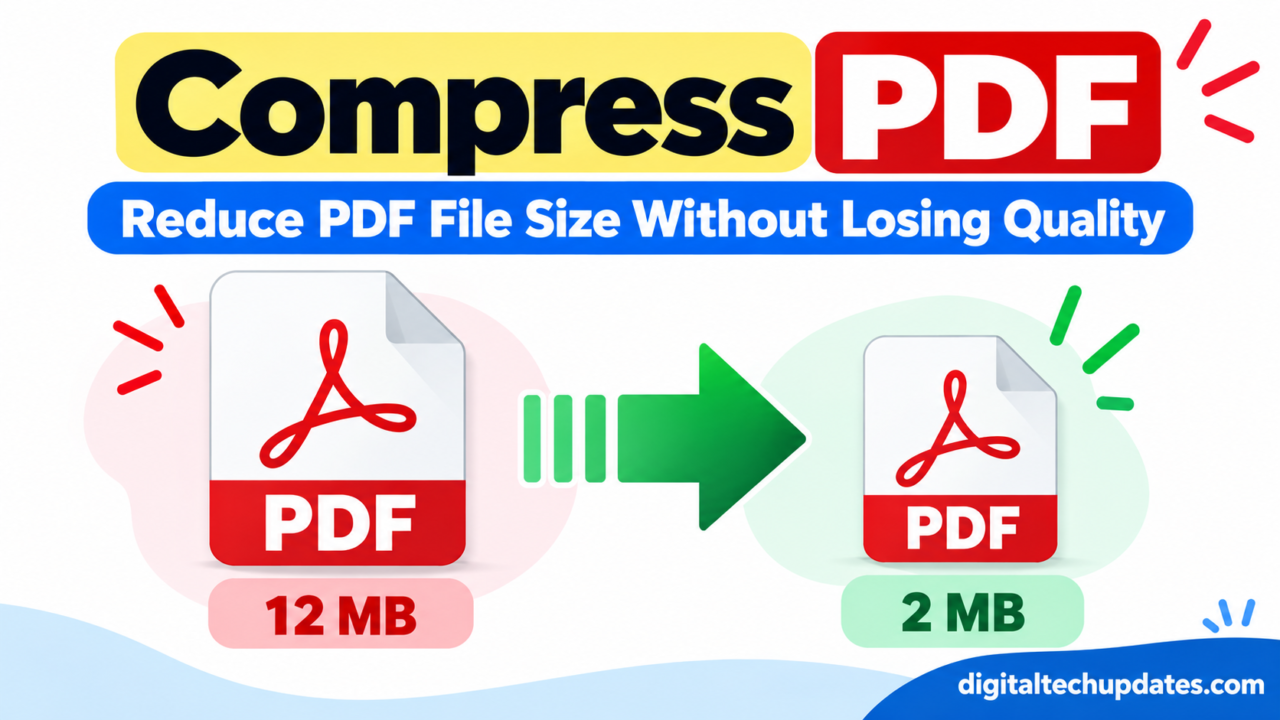
A PDF can be convenient to share, but large PDF files can quickly become a problem when you need to upload them to a website, send them by email, or share them through messaging apps.
If you are looking for a simple way to compress PDF files, you can reduce their size by optimizing images, removing unnecessary data, and choosing an appropriate compression level. The goal is not simply to make the file smaller—it is to make it smaller while keeping the text readable and the important images clear.
Quick Answer: How Do You Compress a PDF?
The easiest way to compress a PDF is to use a PDF compression tool. Generally, you upload the PDF, select a compression level, process the file, and download the smaller version.
However, the best method depends on the type of PDF. A text-based document may become much smaller with little visible change, while a scanned PDF containing high-resolution images may require stronger image compression.
Important: Avoid uploading sensitive documents such as Aadhaar cards, PAN cards, bank statements, certificates, or confidential business documents to an online service unless you are comfortable with its privacy and file-handling policies.
What Does It Mean to Compress a PDF?
Compressing a PDF means reducing the amount of storage space required by the file.
PDF files can contain much more than text. They may include:
- High-resolution photographs
- Scanned pages
- Embedded fonts
- Graphics
- Metadata
- Forms
- Other embedded resources
A PDF compressor attempts to reduce unnecessary or oversized data while keeping the document usable.
For example, a scanned 20 MB PDF containing 100 pages of high-resolution images may be reduced significantly by optimizing those images.
The amount of compression you can achieve depends heavily on what is inside the PDF.
Why Should You Compress a PDF?
There are several situations where reducing PDF file size is useful.
1. Uploading a Document to a Website
Many websites have maximum file-size limits. Government applications, job applications, educational portals and online forms may restrict uploads to a particular size.
If your PDF exceeds the limit, compressing it can make the document acceptable for uploading.
2. Sending PDF Files by Email
Large attachments can be inconvenient and may exceed email attachment limits.
Reducing the PDF size makes it easier to attach and send.
3. Sharing Through WhatsApp or Other Apps
A smaller PDF generally takes less time to upload and download, particularly when using a slower internet connection.
4. Saving Storage Space
If you keep hundreds or thousands of PDF files on your computer or phone, reducing unnecessarily large files can help save storage space.
5. Faster File Transfers
Smaller files are generally easier to upload, download and transfer between devices.
How to Compress a PDF Online
For a non-sensitive document, an online PDF compressor can be one of the quickest options.
The basic process is usually similar across different services:
- Open a reputable PDF compression website.
- Select or upload your PDF.
- Choose the available compression level.
- Start the compression process.
- Download the compressed PDF.
- Open the new file and check its quality.
Before deleting the original file, compare the compressed version with the original.
Make sure:
- All pages are present.
- Text is readable.
- Images are not excessively blurry.
- Tables and graphics still look correct.
- The file opens normally.
Be Careful With Sensitive Documents
Online PDF tools require you to upload your document to a third-party service.
Think twice before uploading documents containing:
- Aadhaar details
- PAN information
- Bank account information
- Personal identification documents
- Medical records
- Confidential company information
- Legal documents
- Passwords or sensitive credentials
For sensitive files, an offline PDF compression method may be a better choice.
How to Compress a PDF Without Losing Quality
The phrase “compress PDF without losing quality” is common, but there is an important limitation: stronger compression can reduce quality.
The trick is to find the right balance between file size and readability.
Use Moderate Compression
If a PDF is only slightly above the required size limit, you may not need aggressive compression.
For example, if a website accepts files up to 5 MB and your PDF is 5.8 MB, moderate compression may be enough.
Avoid Excessive Image Compression
Images usually account for a significant portion of a scanned PDF’s size.
Reducing image resolution or quality can dramatically reduce file size, but overly aggressive settings may make text inside scanned pages difficult to read.
Check the Compressed File
Never assume that a smaller file is automatically better.
Open the compressed PDF and inspect several pages, especially pages containing:
- Small text
- Tables
- Charts
- Photographs
- Signatures
- Scanned documents
How to Compress a PDF on Windows
Windows users have several options for reducing PDF size.
One approach is to use a desktop PDF application that supports optimization or reduced-size PDF output.
Another option is an offline PDF utility designed specifically for compression.
The general workflow is:
- Open the PDF in the chosen application.
- Look for options such as Compress, Optimize, Reduce File Size, or similar.
- Select an appropriate quality setting.
- Save the compressed copy.
- Compare it with the original.
The exact options depend on the software you use.
If you regularly work with confidential documents, an offline solution can be preferable because you do not need to upload the file to an online server.
How to Compress a PDF on Mac
Mac users can sometimes reduce PDF size using built-in tools, depending on the document.
One common approach is through Preview:
- Open the PDF in Preview.
- Select File.
- Choose Export.
- Look for the Quartz Filter option.
- Select a filter intended to reduce file size.
- Save the resulting PDF as a new file.
The result can vary considerably depending on the PDF.
If the document contains detailed images, aggressive size reduction may affect image quality. Always check the resulting file before sending or uploading it.
How to Compress a PDF on Android
If the PDF is stored on your Android phone, you can use a mobile PDF application or an online PDF compression service.
The basic workflow is:
- Open your PDF compression app or service.
- Select the PDF from your phone.
- Choose a compression option.
- Process the document.
- Save or download the compressed PDF.
- Open it and verify the quality.
If the PDF contains sensitive personal information, consider using an offline application instead of uploading it to an online service.
How to Compress a PDF on iPhone
iPhone users can also reduce PDF file size using compatible PDF applications or online services.
Typically, you can:
- Locate the PDF in the Files app.
- Open it with a PDF compression application or compatible service.
- Select the compression option.
- Process the document.
- Save the smaller PDF back to Files.
- Check the final document.
Make sure you retain the original PDF until you have confirmed that the compressed version contains everything you need.
How to Compress a PDF for Email or WhatsApp
If you are trying to send a PDF but the file is too large, compression can help.
First, check the size of the PDF.
If it is only slightly larger than your sharing limit, moderate compression may be sufficient.
For a very large PDF, you may need stronger compression or another approach, such as splitting the document into smaller files.
Before Sending
Check:
- File size
- Number of pages
- Text readability
- Image quality
- File name
- Whether the document opens correctly
If the recipient needs the document for official purposes, avoid compressing it so aggressively that important details become difficult to read.
How to Compress a Large Scanned PDF
Scanned PDFs are often much larger than ordinary text PDFs because every page may essentially contain a high-resolution image.
For example, scanning a document at an unnecessarily high resolution can create a very large file.
To reduce the size of a scanned PDF:
- Reduce unnecessary image resolution.
- Use appropriate image compression.
- Avoid scanning blank pages.
- Use grayscale when color is not required.
- Use black-and-white for suitable text-only documents.
- Remove unnecessary pages.
- Optimize the PDF after scanning.
A Simple Example
Imagine you scan 50 pages of ordinary black-and-white text at an extremely high resolution.
The resulting PDF may be much larger than necessary.
If the document does not require high-resolution images, using a more suitable scanning setting can produce a smaller PDF while keeping the text readable.
Online PDF Compressor vs Offline PDF Compression
| Feature | Online Compression | Offline Compression |
|---|---|---|
| Convenience | Very high | Moderate |
| Installation | Usually not required | Usually required |
| Internet required | Yes | Usually no |
| Sensitive documents | Requires caution | Better suited |
| Mobile use | Usually convenient | Depends on app |
| Large files | Depends on service | Depends on software |
| Privacy control | Depends on provider | Greater control |
For a normal document that does not contain sensitive information, an online PDF compressor can be convenient.
For confidential documents, an offline solution may provide better control over your files.
Is It Safe to Compress PDFs Online?
Online PDF compression is not automatically unsafe, but you should understand what happens when you upload a document.
Different services have different policies regarding:
- File storage
- File deletion
- Data processing
- Account requirements
- Encryption
- Third-party processing
Before uploading an important document, check the service’s privacy policy and terms.
For highly sensitive information, consider compressing the PDF locally on your computer or phone instead.
How Much Can You Reduce a PDF File?
There is no fixed percentage that applies to every PDF.
The final size depends on factors such as:
- Number of pages
- Image resolution
- Image format
- Existing compression
- Embedded fonts
- Graphics
- Scanned content
- PDF structure
A text-heavy PDF may already be relatively small, while a scanned document containing hundreds of high-resolution images can often have much more room for optimization.
For this reason, don’t judge a PDF compressor only by a promised percentage reduction.
The important question is whether the resulting file is small enough while still maintaining acceptable quality.
Common Problems After Compressing a PDF
PDF compression can sometimes create problems.
Blurry Images
If the compression level is too aggressive, images may lose detail.
Unreadable Small Text
This is particularly important with scanned documents. Small text can become difficult to read after excessive image compression.
Poor Scan Quality
Documents containing signatures, stamps or photographs may lose important details.
File Still Too Large
If the PDF is already optimized, additional compression may produce only a small reduction.
In that situation, removing unnecessary pages or reducing image resolution may be more effective.
Formatting Issues
Some complex PDFs may contain unusual fonts, forms or embedded elements that behave differently after optimization.
Always inspect the final PDF.
Tips to Reduce PDF Size Further
If your PDF is still too large after compression, try these steps:
- Remove unnecessary pages
Delete pages that do not need to be included. - Reduce image resolution
High-resolution images can dramatically increase PDF size. - Convert unnecessary color scans to grayscale
This can reduce the amount of image data. - Avoid scanning at unnecessarily high resolutions
Choose a resolution appropriate for the document. - Compress images before creating the PDF
Image-heavy PDFs can benefit significantly from image optimization. - Remove unnecessary embedded content
Some PDFs contain resources that are not required. - Create a new optimized PDF
In some cases, recreating the PDF using optimized source files can produce a smaller result.
Should You Use the Highest Compression Setting?
Not necessarily.
The highest compression setting may give you the smallest file, but it can also produce the biggest reduction in quality.
A better approach is to start with moderate compression.
Then:
- Check the new file size.
- Open the PDF.
- Inspect text and images.
- Increase compression only if necessary.
This is especially important when the PDF contains official documents, certificates, signatures or scanned text.
Frequently Asked Questions
How do I compress a PDF?
You can use an online PDF compressor or desktop/mobile PDF software. Upload or open the document, select an appropriate compression level, process it, and save the smaller PDF.
How can I reduce PDF size?
You can reduce PDF size by compressing images, lowering unnecessary image resolution, removing unused pages and optimizing the PDF structure.
Can I compress a PDF without losing quality?
You can often reduce the size substantially while maintaining good quality, but some degree of quality loss may occur with stronger compression. Moderate compression is usually a good starting point.
What is the best way to compress a large PDF?
The best method depends on the document. For scanned PDFs, optimizing images and scan resolution can make a major difference. For confidential files, an offline tool may be preferable.
Can I compress a PDF on my phone?
Yes. Android and iPhone users can use compatible PDF applications or online compression services. Always be cautious when uploading sensitive documents.
How do I compress a PDF for email?
Use a PDF compression tool to reduce the file size, then check that the compressed document remains readable before attaching it to your email.
Is online PDF compression safe?
It depends on the service and its privacy and security practices. Avoid uploading highly sensitive documents unless you have reviewed the provider’s policies and are comfortable with its handling of your files.
Why is my PDF still large after compression?
The PDF may already be optimized, or it may contain large images, scanned pages or other embedded data. Reducing image resolution or removing unnecessary pages may help further.
Final Verdict
Learning how to compress PDF files can save storage space and make documents easier to upload, email and share.
For ordinary documents, an online PDF compressor can be a quick and convenient solution. For confidential documents, consider an offline method so the file remains on your device.
Most importantly, don’t focus only on getting the smallest possible file. A good compressed PDF should be small enough for your purpose while keeping its text, images and important details readable.
Before submitting or sharing the compressed document, open it and check the pages carefully. A few seconds of checking can prevent problems later.

Thalla Lokesh
Thalla Lokesh is a Digital Marketing Strategist and SEO Specialist with over 12 years of experience in helping businesses grow their online presence. Since beginning his career in 2013, he has successfully worked across industries including healthcare, education, technology, and e-commerce. He specializes in search engine optimization (SEO), content marketing, keyword strategy, and link building, with a strong focus on delivering measurable results. Lokesh has helped brands achieve top rankings on Google through data-driven strategies, high-quality content, and ethical SEO practices aligned with search engine guidelines. As the founder of Honey Web Solutions , a Tirupati-based digital marketing company, he actively works with clients to improve organic traffic, lead generation, and online visibility. He also contributes expert insights on digital marketing trends, AI SEO, and content strategies through blogs and industry platforms.