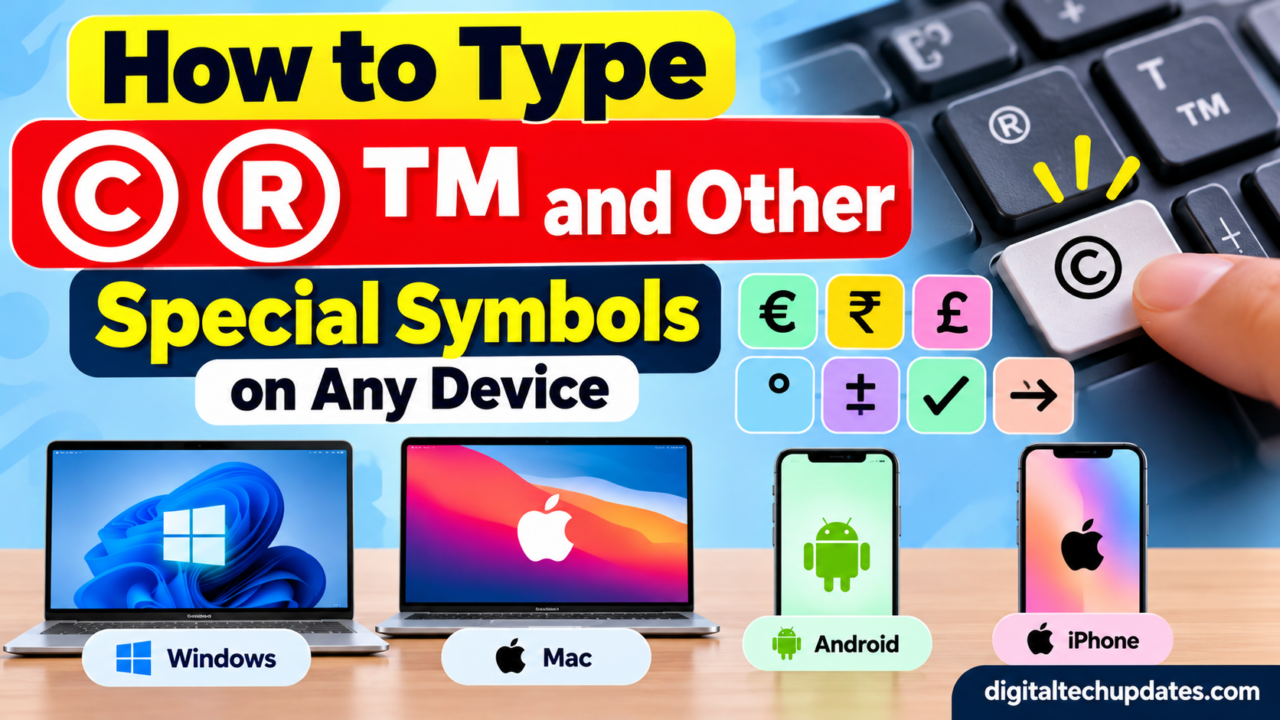
How to Type © ® ™ and Other Special Symbols on Any Device

Have you ever needed to type the copyright symbol (©), registered trademark symbol (®), or trademark symbol (™), but could not find it on your keyboard? These characters are commonly used in blog posts, business documents, website footers, presentations, product descriptions, and professional emails.
The good news is that you do not need a special keyboard or additional software to type most special symbols. Windows and Mac computers offer built-in shortcuts and symbol tools, while Android phones and iPhones let you insert characters through their keyboards or text-replacement features.
In this guide, you will learn how to type ©, ®, ™, €, £, °, ±, →, ✓, and many other special characters on Windows, Mac, Android, and iPhone.
Quick Copy and Paste: Common Special Symbols
If you need a symbol immediately, copy it from this table and paste it into your document, email, website, or message.
| Symbol | Name | Common use |
|---|---|---|
| © | Copyright | Copyright notices and website footers |
| ® | Registered trademark | Registered brand names |
| ™ | Trademark | Brand names and product marks |
| ℠ | Service mark | Services and business branding |
| € | Euro sign | European currency |
| £ | Pound sign | British currency |
| ₹ | Indian rupee sign | Indian currency |
| ¥ | Yen sign | Japanese currency |
| ° | Degree symbol | Temperature and angles |
| ± | Plus-minus | Mathematics and measurements |
| × | Multiplication sign | Mathematical calculations |
| ÷ | Division sign | Mathematical calculations |
| ≤ | Less than or equal to | Mathematics and technical writing |
| ≥ | Greater than or equal to | Mathematics and technical writing |
| ≠ | Not equal to | Equations and comparisons |
| © | Copyright symbol | Content ownership notices |
| • | Bullet | Lists and document formatting |
| — | Em dash | Punctuation |
| … | Ellipsis | Incomplete statements or pauses |
| ✓ | Check mark | Completed tasks and confirmations |
| → | Right arrow | Directions and processes |
| ★ | Star | Ratings and highlights |
| § | Section sign | Legal and formal documents |
| ¶ | Paragraph sign | Editing and document formatting |
| ∞ | Infinity | Mathematics and science |
Quick tip: Select the symbol you need, copy it with Ctrl + C on Windows or Command + C on Mac, and paste it with Ctrl + V or Command + V. On a phone, touch and hold the symbol and choose Copy, then paste it where required.
How to Type Special Symbols on Windows 11 and Windows 10
Windows provides several ways to insert symbols, including keyboard shortcuts, the built-in symbols panel, and Character Map.
Method 1: Use Windows Alt Codes
If your keyboard has a dedicated numeric keypad, Alt codes are a convenient way to type common symbols.
Follow these steps:
- Open the document or application where you want to insert the symbol.
- Place the cursor at the correct position.
- Hold down the
Altkey. - Type the required numeric code using the numeric keypad.
- Release
Altto insert the symbol.
Here are some useful Windows Alt codes:
| Symbol | Alt code |
|---|---|
| © | Alt + 0169 |
| ® | Alt + 0174 |
| ™ | Alt + 0153 |
| • | Alt + 0149 |
| § | Alt + 0167 |
| £ | Alt + 0163 |
| ¥ | Alt + 0165 |
| ° | Alt + 0176 |
| ± | Alt + 0177 |
| × | Alt + 0215 |
| ÷ | Alt + 0247 |
| ¶ | Alt + 0182 |
| – | Alt + 0150 |
| — | Alt + 0151 |
These are traditional Windows Alt-code combinations and may depend on the application, keyboard, and input configuration. For the listed codes, use the numeric keypad rather than the number row above the letters.
Important: If your laptop does not have a dedicated numeric keypad, use the Windows symbols panel or Character Map instead.
Method 2: Use the Windows Symbols Panel
Windows 10 and Windows 11 include a built-in panel for inserting symbols and other special characters.
- Place the cursor in the text field where you want the symbol.
- Press
Windows + .(period). - Open the Symbols section.
- Browse the available categories or search for a symbol.
- Select the character to insert it.
This method is useful for inserting punctuation, mathematical symbols, currency signs, and other characters without memorizing codes.
Method 3: Use Character Map
Character Map is useful when you need a symbol that is difficult to find on your keyboard.
- Open the Windows Start menu.
- Search for Character Map.
- Open the application.
- Select the required character and click Select.
- Click Copy.
- Paste the character into your document.
You can also choose a font to check which characters it supports.
For additional guidance, visit Microsoft Support’s Windows keyboard tips.
How to Type ©, ®, and ™ on a Mac
Mac users can insert common special characters using keyboard shortcuts or Apple’s built-in Character Viewer.
Method 1: Use Mac Keyboard Shortcuts
With a standard U.S. keyboard layout, these shortcuts work in many Mac applications:
| Symbol | Keyboard shortcut |
|---|---|
| © | Option + G |
| ® | Option + R |
| ™ | Option + 2 |
To use a shortcut, hold the Option key and press the corresponding key.
Keyboard shortcuts can vary with the selected input source or keyboard layout. If a shortcut does not produce the expected symbol, use Character Viewer.
Method 2: Use Character Viewer
Character Viewer lets you search for and insert symbols, emoji, accented letters, and characters from different writing systems.
- Open the document where you want to insert a symbol.
- Press
Control + Command + Spaceor use the Emoji & Symbols option in the Edit menu. - Search for the symbol by name.
- Select the character to insert it.
You can search for terms such as copyright, registered sign, trademark, degree, or arrow.
For more information, see Apple’s Use emoji and symbols on Mac guide.
Method 3: Use Keyboard Viewer
If you frequently use keyboard shortcuts, Keyboard Viewer can show which characters are available through your current keyboard layout.
Open the keyboard settings, enable the Input menu if needed, and choose Show Keyboard Viewer. You can then inspect the available keys and modifier combinations.
This is particularly helpful when using a non-U.S. keyboard layout.
How to Type Special Symbols on Android Phones
Android phones use different keyboard applications and layouts, so the exact steps may vary. Gboard and other popular keyboards provide additional punctuation and symbol keys.
Method 1: Use the Symbols Keyboard
- Open an app where you can type, such as Messages, Gmail, or Google Docs.
- Tap the text field to display the keyboard.
- Tap the
?123key or the equivalent numbers-and-symbols key. - Look for the symbol you need.
- If it is not visible, open the additional symbol layout, often through a key such as
=\<or another symbols key.
The exact key labels depend on your keyboard application and version.
Method 2: Copy and Paste the Symbol
If you cannot find the required character, use the copy-and-paste table near the beginning of this article.
- Touch and hold the desired symbol.
- Choose Copy.
- Open your target app.
- Touch and hold the text field.
- Select Paste.
This works well for symbols such as ©, ®, ™, ₹, ±, and ✓.
Method 3: Use Personal Dictionary or Text Shortcuts
Some Android keyboards allow you to create text shortcuts or personal dictionary entries.
For example, you could configure a shortcut such as ;copy to expand into ©, if your keyboard supports symbol-based shortcuts.
Open your keyboard’s settings and look for Personal dictionary, Text shortcuts, or a similar option. The menu names and available features vary by keyboard.
This method is especially helpful if you frequently add copyright notices to blog posts, emails, or social media content.
How to Type Special Symbols on an iPhone
The iPhone’s built-in keyboard includes numbers, punctuation, and additional symbols. For less common characters, copying and pasting or using Text Replacement may be easier.
Method 1: Use the iPhone Keyboard
- Open an app such as Notes, Mail, or Messages.
- Tap a text field to display the keyboard.
- Tap
123to open the numbers and punctuation layout. - Tap the additional symbol key if necessary.
- Select the symbol you want.
Not every special character appears directly on the standard keyboard.
Method 2: Set Up Text Replacement
Text Replacement lets you create a shortcut that expands into a word, phrase, or symbol.
For example, you could configure ;copy to insert © or ;tm to insert ™.
To set up a shortcut:
- Open Settings.
- Go to General.
- Select Keyboard.
- Tap Text Replacement.
- Tap the plus sign.
- Enter the symbol in the Phrase field.
- Enter a short shortcut in the Shortcut field.
- Save your changes.
Next time you type the shortcut in a compatible text field, your iPhone may offer the saved replacement.
This feature is useful for repeated copyright notices, registered brand symbols, and other frequently used characters.
For more information, see Apple’s iPhone keyboard guide.
How to Type Special Symbols in Microsoft Word and Google Docs
If you regularly prepare documents, you can insert special characters through the word processor rather than relying on your operating system’s keyboard shortcuts.
In Microsoft Word
Microsoft Word offers an Insert Symbol option that allows you to browse and insert characters supported by the selected font.
- Open your document.
- Select the Insert tab.
- Choose Symbol or the available symbol menu.
- Browse the symbols or open More Symbols.
- Select the desired character and insert it.
Some symbols may also have application-specific keyboard shortcuts or AutoCorrect entries.
In Google Docs
Google Docs offers a special-character picker.
- Open your document.
- Select Insert.
- Choose Special characters.
- Search for a character by name or browse the available categories.
- Click the symbol to insert it.
This method is useful for mathematical characters, arrows, currency signs, and less common punctuation.
What Do ©, ®, and ™ Actually Mean?
Although these three symbols are often used together, they have different meanings.
Copyright symbol (©)
The copyright symbol identifies a copyright notice associated with creative work, such as writing, photography, illustrations, music, or software documentation.
Example:
© 2026 DigitalTechUpdates.com. All rights reserved.
Using this symbol does not by itself determine whether a work is protected or establish ownership in every legal situation.
Registered trademark symbol (®)
The registered trademark symbol indicates that a mark is registered as a trademark in the relevant jurisdiction.
Example:
ExampleBrand®
Do not use ® merely because a business owns a name or has submitted a trademark application. Registration status and permitted use depend on the applicable law.
Trademark symbol (™)
The ™ symbol is commonly used to identify a mark that a business is claiming as a trademark, including marks that are not registered.
Example:
Example Product™
Trademark rules vary by country, so businesses should check the relevant jurisdiction before making legal claims about their marks.
Frequently Asked Questions
How do I type the copyright symbol quickly?
On a Mac using a U.S. keyboard layout, press Option + G. On Windows, use Alt + 0169 with the numeric keypad, or open the symbols panel using Windows + period. You can also copy © from this guide.
How do I type the registered trademark symbol?
On a Mac with a U.S. keyboard layout, press Option + R. On Windows, use Alt + 0174 with the numeric keypad. Alternatively, copy and paste ®.
How do I type the trademark symbol on a keyboard?
On a Mac using a U.S. keyboard layout, press Option + 2. On Windows, use Alt + 0153 with the numeric keypad. You can also insert ™ through the symbol picker or copy it from this article.
How can I type special symbols without memorizing shortcuts?
Use the built-in symbol tools in Windows, macOS, Microsoft Word, or Google Docs. On a phone, open the symbols keyboard or copy and paste the character.
Can I create shortcuts for symbols I use frequently?
Yes. Depending on your device and software, you can configure text replacements or shortcuts for frequently used symbols. On an iPhone, use Settings > General > Keyboard > Text Replacement. On other devices, check the keyboard or application settings.
Do special symbols work on every website and app?
Most common symbols are supported by modern applications, but the appearance depends on font support and software compatibility. A character may display differently or appear as a missing-character box if the selected font or application does not support it.
Conclusion
Typing special symbols such as ©, ®, and ™ does not need to be difficult. Windows users can use Alt codes, the symbols panel, or Character Map. Mac users can use keyboard shortcuts and Character Viewer, while Android and iPhone users can rely on their symbol keyboards, copy-and-paste options, or text shortcuts.
If you use these characters regularly, create a few shortcuts for your most common symbols and keep a copy-and-paste reference nearby. It can save time when writing blog posts, preparing documents, or managing a website.
Quick reminder: Copy the symbols you need from the table at the top of this article whenever you want the fastest method.

Thalla Lokesh
Thalla Lokesh is a Digital Marketing Strategist and SEO Specialist with over 12 years of experience in helping businesses grow their online presence. Since beginning his career in 2013, he has successfully worked across industries including healthcare, education, technology, and e-commerce. He specializes in search engine optimization (SEO), content marketing, keyword strategy, and link building, with a strong focus on delivering measurable results. Lokesh has helped brands achieve top rankings on Google through data-driven strategies, high-quality content, and ethical SEO practices aligned with search engine guidelines. As the founder of Honey Web Solutions , a Tirupati-based digital marketing company, he actively works with clients to improve organic traffic, lead generation, and online visibility. He also contributes expert insights on digital marketing trends, AI SEO, and content strategies through blogs and industry platforms.