Google Guided Vision on Android: How Gemini Can Describe What You See

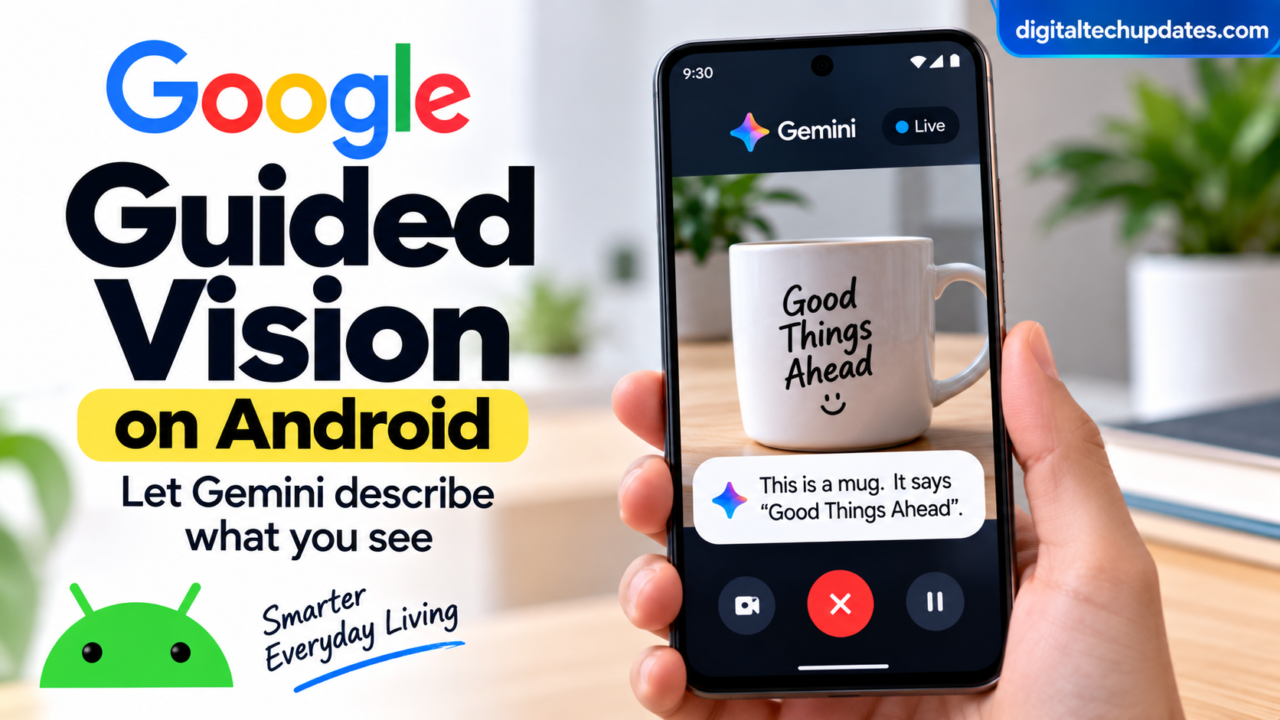
Imagine pointing your Android phone’s camera at a food label and hearing Gemini read the small text aloud. Or point the camera toward a kitchen cabinet and ask where a particular item is. You can even ask Gemini to describe what’s around you while you’re using your phone.
Google’s new Guided Vision feature brings this type of camera-based AI assistance to Gemini Live on Android.
Guided Vision uses the phone’s camera and Gemini to provide spoken descriptions and real-time guidance about what the camera sees. Google says the feature was designed with and for blind and low-vision communities, with use cases including reading fine print, identifying objects, understanding colors and describing surroundings.
The feature is rolling out gradually, so it may not be available on every compatible phone yet.
Here’s everything you need to know about Google Guided Vision on Android, including how it works, how to enable it, what you can use it for and its important limitations.
What Is Google Guided Vision?
Google Guided Vision is a feature inside Gemini Live that allows Gemini to use your phone’s camera to understand and describe the environment around you.
Instead of taking a photograph and asking Gemini about it afterward, you can have an ongoing Live conversation while the camera is being shared.
You can ask questions about what the camera sees and receive spoken responses.
Google gives examples such as:
- Reading small text on food labels
- Reading complex signs
- Understanding menu descriptions
- Identifying household objects
- Understanding colors and patterns
- Finding objects around the home
- Getting descriptions of a room or surrounding area
If the camera isn’t pointed correctly, Guided Vision can also provide voice feedback telling you to reframe the camera, pan across an area or center an object.
This makes Guided Vision different from a conventional camera search. It is designed around an ongoing, conversational experience.
How Does Google Guided Vision Work?
Guided Vision works through Gemini Live.
The basic process is:
- Open the Gemini app.
- Start a Gemini Live conversation.
- Turn on Guided Vision.
- Share your phone’s camera.
- Point the camera at something you want to understand.
- Ask Gemini a question.
- Listen to Gemini’s spoken response.
- Move or reframe the camera if Gemini asks you to.
Because Gemini Live supports natural back-and-forth conversations, you don’t necessarily have to stop and start a new request for every question.
For example, you could point the camera at a food package and ask:
“What does this label say?”
After Gemini responds, you could continue:
“What is the expiry date?”
Or:
“Can you translate this?”
Google’s Android Help documentation says Guided Vision can provide audio descriptions of text, objects and surroundings while the camera is shared in Gemini Live.
How to Turn On Guided Vision on Android
If Guided Vision is available on your account and device, you can enable it from the Gemini app.
Step 1: Open Gemini
Open the Gemini mobile app on your Android phone.
Step 2: Open Settings
At the top of the Gemini app, tap your profile picture or initial.
Then open Settings.
Step 3: Enable Guided Vision
Look for:
Use Guided Vision in Live
Turn the setting on.
Google’s current instructions say that after enabling the option, you can tap Start Live from the notification to begin a Guided Vision session.
Step 4: Start Gemini Live
Start a Live conversation and share your phone’s camera.
You can then point the camera toward the object, text or surroundings you want Gemini to describe.
How to Use Guided Vision With the Camera
Once Guided Vision is active, the camera becomes the main way Gemini understands your surroundings.
For example, point the camera at a product label and ask:
“Read this label for me.”
If the text is too small or the camera isn’t positioned correctly, Guided Vision can provide feedback about how to adjust the camera.
Google says the feature can tell you to:
- Reframe the camera
- Pan across a space
- Center an object
This is particularly useful when the user cannot easily determine whether the camera is pointed at the correct part of a scene.
What Can Google Guided Vision Do?
Guided Vision has several practical applications.
1. Read Small Text
One of the most useful capabilities is reading text that may be difficult to see.
You can point the camera at:
- Food labels
- Appliance displays
- Signs
- Product packaging
- Small labels
- Menus
Then ask Gemini to read or explain what is visible.
Google says Guided Vision can also help read or translate text in the environment.
2. Identify Objects
You can point the camera toward an unfamiliar object and ask Gemini what it is.
For example:
“What is this object?”
You can also ask Gemini to help locate a particular object.
Google gives the example of asking for help finding pepper in a spice cabinet.
3. Understand Colors
Guided Vision can help describe characteristics such as color, shape and pattern.
For example, you could point the camera at clothing and ask:
“What color is this shirt?”
Or:
“Does this shirt have a pattern?”
Google lists color, shape and pattern descriptions among Guided Vision’s capabilities.
4. Understand Your Surroundings
Guided Vision can provide audio descriptions of what’s around you.
For example, you can ask Gemini to describe a room or help locate a household object.
Google gives an example involving finding an earbud that has fallen somewhere nearby.
5. Get Help With Menus
Imagine you’re in a restaurant with a poorly lit menu.
You can point your camera toward the menu and ask Gemini to read or describe it.
Google specifically mentions ordering from a low-lit restaurant menu as one of the potential Guided Vision use cases.
Guided Vision for Blind and Low-Vision Users
Accessibility is an important part of Guided Vision.
Google says the feature was designed for and with blind and low-vision communities.
Instead of relying entirely on visual information from the phone screen, users can receive spoken descriptions and guidance.
For example, Guided Vision can help with:
- Reading labels
- Understanding signs
- Identifying objects
- Finding objects
- Understanding colors
- Describing surroundings
The ability to receive voice feedback about camera positioning is also significant because the system can tell the user to move the phone or adjust its framing.
How to Quickly Access Guided Vision
Google provides several shortcut options for Guided Vision.
You can add Guided Vision as an Accessibility shortcut.
The available shortcut methods can include:
- Accessibility button
- Accessibility gesture
- Volume-key shortcut
Google’s current Android Accessibility instructions also allow Guided Vision to be accessed through the TalkBack menu.
With TalkBack enabled, users can tap the screen with three fingers to open the TalkBack menu and choose Guided Vision.
This can make the feature quicker to access when it is needed frequently.
Guided Vision and Gemini Live
It’s important to understand the relationship between these two features.
Gemini Live is the conversational experience.
Guided Vision adds camera-based visual understanding and spoken guidance to that experience.
Gemini Live already supports natural voice conversations and camera sharing. Guided Vision builds on that functionality for situations where users need more structured audio guidance about what the camera sees.
This means Guided Vision isn’t a completely separate AI assistant.
It works as part of Gemini Live.
Is Guided Vision Available on Every Android Phone?
No.
Google says Guided Vision is rolling out gradually, so some users may not have access yet.
The September 2026 Android announcement says Guided Vision is coming to phones running Android 9 or later in countries where Gemini is available.
However, Android version alone does not guarantee immediate access.
Availability can depend on:
- Device
- Google account
- Country
- Gemini availability
- Software version
- Feature rollout
Google’s Android Help page currently warns that the feature is rolling out slowly.
Why Can’t I See Guided Vision on My Phone?
If Guided Vision isn’t appearing, don’t assume that your phone is unsupported.
The feature may simply not have reached your account yet.
You can check the following:
Update Gemini
Make sure you have the latest version of the Gemini app.
Check Android Version
Google says the September Android announcement targets phones running Android 9 and later.
Check Gemini Availability
Gemini mobile features aren’t available on every device, account, language or location.
Check Gemini Settings
Open Gemini settings and look for:
Use Guided Vision in Live
If the option isn’t available, the feature may not have rolled out to your account yet.
Can Guided Vision Read and Translate Text?
Yes.
Google says Guided Vision can provide audio descriptions of text and can also help read or translate text.
This can be useful when dealing with:
- Product packaging
- Signs
- Menus
- Appliance displays
- Small labels
- Other text in your environment
You can point the camera at the text and ask Gemini what it says or request a translation.
Can Guided Vision Find Objects?
Guided Vision can help identify and locate objects within the camera’s view.
For example, if you’re looking for an item in a room or cabinet, you can ask Gemini to help identify where it is.
Google’s documentation gives the example of finding pepper in a spice cabinet and locating an earbud that has fallen nearby.
However, users should understand that this is AI-based visual guidance, not a physical tracking system.
If an object is outside the camera’s view, Gemini cannot magically know its exact location.
Does Guided Vision Work in Real Time?
Guided Vision is designed for an ongoing Gemini Live interaction.
You share the camera while talking with Gemini, and Gemini can respond with audio guidance about what it sees.
The experience is therefore more interactive than simply taking a picture and asking a one-time question.
Google’s Gemini Live documentation confirms that users can turn on video streaming during Live conversations and use Guided Vision when the camera is shared.
Important Limitations of Guided Vision
Although Guided Vision can be useful, Google includes important warnings.
It Can Make Mistakes
AI-generated descriptions are not guaranteed to be correct.
Always verify important information independently.
Google specifically says Guided Vision is not intended for navigation or obstacle detection.
This is extremely important.
Users should not rely on Guided Vision to safely cross roads, navigate traffic, detect obstacles while walking or replace another person’s assistance.
It Is Not a Medical Device
Guided Vision is not a medical device or a substitute for professional care.
It Is Not a Mobility Aid
Google explicitly says the feature should not be treated as a mobility aid.
These limitations are especially important because an AI system can misunderstand what the camera sees.
Guided Vision vs Normal Gemini Camera Search
| Feature | Normal Gemini Camera Use | Guided Vision |
|---|---|---|
| Camera input | Yes | Yes |
| Ask questions about images | Yes | Yes |
| Voice conversation | Yes | Yes |
| Real-time guidance | More limited | Designed for guided feedback |
| Reads text | Yes | Yes |
| Identifies objects | Yes | Yes |
| Camera positioning feedback | Not the main purpose | Yes |
| Accessibility focus | General | Strong accessibility focus |
| Navigation tool | No | No |
Guided Vision is therefore best understood as a specialized Gemini Live experience focused on audio guidance and visual understanding.
Is Guided Vision Useful for Everyday Android Users?
Yes, there are several practical situations where it could be useful.
For example:
At home:
“Where is my earbud?”
At the supermarket:
“Read this food label.”
At a restaurant:
“Can you read this menu?”
While sorting clothes:
“What color is this shirt?”
While checking an appliance:
“Read the display and tell me what it says.”
These examples demonstrate how the camera can become an input for a conversational AI assistant.
Google Guided Vision vs Google Lens
Guided Vision and Google Lens both use the camera, but they serve somewhat different purposes.
Google Lens is primarily a visual search and recognition tool.
Guided Vision is built around an ongoing Gemini Live conversation with spoken guidance.
With Guided Vision, the interaction can continue as you ask follow-up questions about what the camera sees.
Google’s current Gemini documentation also describes camera-based Gemini Live as a way to get real-time help with objects, manuals and other things in front of the camera.
Is Guided Vision Free?
Google’s current documentation describes Guided Vision as part of Gemini Live, but availability can vary by account, device, location and rollout.
Rather than assuming that every Gemini user receives every capability at the same time, users should check their Gemini app for the Use Guided Vision in Live option.
Google also notes that Gemini mobile features may not be available for every language, device, account or location.
Frequently Asked Questions
What is Google Guided Vision?
Google Guided Vision is a Gemini Live feature that uses an Android phone’s camera to provide spoken descriptions and real-time guidance about objects, text and surroundings.
Is Guided Vision available on Android?
Yes. Google says Guided Vision is coming to phones running Android 9 or later in countries where Gemini is available, but the feature is rolling out gradually.
How do I turn on Guided Vision?
Open Gemini, go to Settings and enable Use Guided Vision in Live. Then start a Gemini Live conversation and share your camera.
Can Guided Vision read small text?
Yes. Google lists reading fine print, labels, signs, menus and appliance displays among its use cases.
Can Guided Vision identify objects?
Yes. It can provide audio guidance for identifying and locating objects within the camera’s view.
Can Guided Vision describe a room?
Yes. Google says Guided Vision can provide audio descriptions of surroundings, including room layouts.
No. Google specifically warns that Guided Vision should not be used for navigation or obstacle detection.
Is Guided Vision a mobility aid?
No. Google explicitly says it is not intended to be a mobility aid.
Why don’t I have Guided Vision yet?
The feature is rolling out gradually. Your device, account, location and Gemini availability can affect whether you have access.
Final Takeaway
Google Guided Vision adds another layer to Gemini Live by allowing your Android phone’s camera to become a conversational source of information.
Instead of simply taking a photo, you can point the camera at text, objects or your surroundings and ask Gemini questions while receiving spoken responses.
The feature has particularly important accessibility applications. Google says it was designed with and for blind and low-vision communities, with capabilities such as reading text, identifying objects, describing colors and understanding surroundings.
At the same time, Guided Vision has clear limitations. It can make mistakes and should not be relied upon for navigation, obstacle detection, mobility assistance or safety-critical decisions.
As the feature rolls out to more Android users, it represents another example of how Gemini is moving beyond text-based questions and becoming more useful for understanding the physical world through a phone camera.
Official Google Sources
- Google Android — September 2026 Android Drop
- Google Android Accessibility Help — Guided Vision in Gemini Live
- Google Android Help — Using Gemini
- Google Gemini Help — Gemini Live
Thalla Lokesh
Thalla Lokesh is a Digital Marketing Strategist and SEO Specialist with over 12 years of experience in helping businesses grow their online presence. Since beginning his career in 2013, he has successfully worked across industries including healthcare, education, technology, and e-commerce. He specializes in search engine optimization (SEO), content marketing, keyword strategy, and link building, with a strong focus on delivering measurable results. Lokesh has helped brands achieve top rankings on Google through data-driven strategies, high-quality content, and ethical SEO practices aligned with search engine guidelines. As the founder of Honey Web Solutions , a Tirupati-based digital marketing company, he actively works with clients to improve organic traffic, lead generation, and online visibility. He also contributes expert insights on digital marketing trends, AI SEO, and content strategies through blogs and industry platforms.