Using Google Heatmaps

What is a Heatmap?
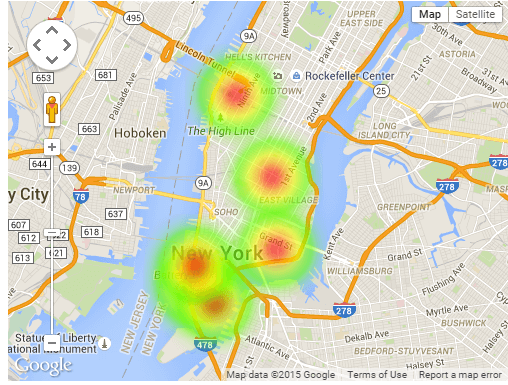
Wikipedia defines a heat map as a graphical representation of data where the individual values contained in a matrix are represented as colors. In WP Google Maps v6 the colors represent the density of “Markers” on the Map within an area drawn in the Map Editor. Since the radius of the heatmap area is fixed regardless of zoom level, it’s useful for showing a lot of things that gradually separate as you zoom in.
There are many other software that can help you in creating a Google heat map – we strongly recommend to check it out and find the one that suits your needs.
Drawing a Heatmap
Open (or Create) the Map you want to use in the Map Editor (WordPress Dashboard → Maps).
Click the Heatmap tab to open the Google Heatmap Editor.

On the Heatmap Editor page, click the Add a New Dataset button. If you have existing datasets, you can click the Edit button.

- Give your dataset a Name.
- You can choose between the Default Gradient or a Blue Gradient for your Heatmap by clicking the appropriate button. The chosen button will display a border for a few moments.
- You can adjust the Opacity of your Heatmap by entering any value between 0 and 1.0. These numbers represent a percentage between 0 and 100% (.1 is 10%, .2 is 20%, and so on).
- You can also modify the Radius of your Heatmap by entering a new value in the Radius textbox.
When you’ve added all your data Markers to the Map, click the Save Dataset button.

Map with Heatmap Displayed

Adding Marker Data without Drawing
If your data composes of geographic coordinates you can simply copy & paste that data into the Heatmap data text box on the Heatmap Editor page. The data must be a series of comma-separated values, for example: (31.038329543616193, -83.63107960671186),(31.03832947179815, -83.63107960671186),(31.545288367366297, -83.01035206764936)

Don’t forget to click the Save Dataset button to save your data.
This article covers using heatmaps WP Google Maps. This article is based on WP Google Maps v6. WP Google Maps v7 (currently in development) makes significant changes to this feature. If you need further assistance or are having other issues with the plugins, feel free to visit our Support Desk.

Thalla Lokesh
Thalla Lokesh is a Digital Marketing Strategist and SEO Specialist with over 12 years of experience in helping businesses grow their online presence. Since beginning his career in 2013, he has successfully worked across industries including healthcare, education, technology, and e-commerce. He specializes in search engine optimization (SEO), content marketing, keyword strategy, and link building, with a strong focus on delivering measurable results. Lokesh has helped brands achieve top rankings on Google through data-driven strategies, high-quality content, and ethical SEO practices aligned with search engine guidelines. As the founder of Honey Web Solutions , a Tirupati-based digital marketing company, he actively works with clients to improve organic traffic, lead generation, and online visibility. He also contributes expert insights on digital marketing trends, AI SEO, and content strategies through blogs and industry platforms.